
User's Manual




4 USER INTERFACE
30
• restart: restart the screen after upgrade
• Firmware upgrade operation area (FW operation):
• Restart: the button to restart the firmware, i.e. restart the motion control card
• System setting area:
• Listen after start: Set to automatically allow the remote access after the system is restarted, or
manually click the "Listen" button in remote printing service interface to enbale the service
manually.
• Wifi auto reconnect: The system will automatically connect to the last WiFi network after restart, or
user may click "Connect" button in the WiFi setting interface to connect manually.
• Developer mode: Enabled developer mode is available for user to customize the sending G code
and enable Logo for fault diagnosis.
• Usb print enabled: Under this mode, user can do a printing in direct connection with USB serial
port by external computer. When the mode is enabled, the mainboard will disconnect the
communication with screen, and switch to USB serial port equipment communication. It is used for
the printing in direct connection with USB serial port by external computer. Note: This system
setting will not be saved, and it will be restored to disabled state after restart.
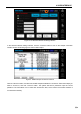
Click the extension button to turn to the extension interface for system settings.
Figure 4. 22 Extension interface for system settings
• Material chamber auto heat: material chamber auto heat switch. Heat material chamber when
system starts or material is changed. Blue for enabled, and gray for disabled
• Door lock enabled: the e-lock enabling switch, blue for enabled (locked), and gray for disabled
(unlocked)
• Liquid cooler control: the liquid cooler control switch, blue for liquid cooler enabled, and gray for
liquid cooler disabled
• Motor enabled: Motor enabling switch, blue for enabled, and gray for disabled
• Auto leveling enabled: Automatic leveling enabling switch, blue for enabled, and gray for disabled