
User's Manual




4 USER INTERFACE
29
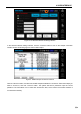
The material operation interface is used to edit the material data. The material parameters display area
displays all materials, where user can slide up and down to display other materials. After the user clicks
the material to be edited, the material editing area will display the parameters of the material selected
currently. Click the corresponding text box to change the parameter. Change the material database in
memory by the buttons in operating area:
• Load: Give up the current change, and load the material database content saved last
• Append: Append the material in current editing area to the end of material database
• Insert: Insert the material in current editing area before the material currently selected
• Remove: Remove the material currently selected
• Change: Change the content in current editing area to the material selected currently
The “Save” button is used to save the change of material database.
Note: Be sure to click the “Save” button after editing the material database. Otherwise, the change will not
be saved.
If the entries in material database are deleted to 0 entry and saved, the system's initial database will be
automatically loaded next user enters the material interface. This method can be used to restore the
system database or update the system database after the upgrade of system database.
4.6 System Interface
The system interface is used for the relevant settings of the system, including the view and upgrade of
system information, setting of system relevant parameters, setting of printer system parameters, etc.
Figure 4. 21“System” interface
Software upgrade operation area (SW upgrade):
• restore: the button to restore the last version of the screen software
• upgrade: the button to upgrade after the USB disk carrying the new version of software is plugged
in