
User's Manual



4 USER INTERFACE
19
• Ethernet configuration (wired network connection icon)
• Wifi configuration (wireless network icon)
• Remote printing service configuration (globe icon)
• Error diagnosis (E:000)
• Selection of printing data (combo box)
• Screen lock (lock icon)
4.1.1 Status bar
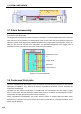
The status bar is on the top of the touch screen display, appearing on each page of the user interface.
Various information are displayed in the information bar, including the INTAMSYS logo, system status
indicator, network state indicator, error state indicator, display of printing data source, etc.
Figure 4. 2 Status bar
The display of status bar is shown as the figure, and meanwhile the objects in status bar may be clicked
for operation.
Table 4.1 Icon State and Clicking Operation
Meaning of icon Description and operation
Logo Click to turn to the page of INTAMSYS company profile,
where the QR code, contact number and e-mail address are
provided
E-lock state Click to lock the e-lock when the e-lock is unlocked
Clock to unlock the e-lock when the e-lock is locked
E-lock unlocked
E-lock locked
Camera state Click to disable the camera when the camera is enabled
Click to enable the camera when the camera is disabled
Camera disabled
Camera enabled
Wired network state Click to view and configure the IP address of wired network
Only view of the wired network IP address is available when
there is no wired network access
No wired network
access
Wired network
access
Wireless network state Click to view and configure the IP address of wireless