User’s Manual CoolCopy1AL(CD-Backup) CoolCopy 3 CoolCopy 7
Table of Contents Chapter 1 Introduction ................................................................4 1.1 Overview ...................................................................................4 1.2 Features ....................................................................................4 1.3 Specifications ...........................................................................4 Chapter 2 Installation Procedure .............................................5 2.1 Controller only .........
4.11.6 Auto Verify ...........................................................................22 4.11.7 Auto Compare ......................................................................22 4.11.8 Auto Prescan .......................................................................22 4.11.9 Eject Disc ............................................................................22 4.11.10 Burn on The Fly ................................................................23 4.11.11 Burn Mode ......................
Chapter 1 Introduction 1.1 Overview People who want to create multiple copies of their CDs usually take a long time to do so. They might not have enough CD+RW drives or they might be using their computers for some other important tasks. The duplication process noticeably slows down a computer during the burn process. Rather than sit at the computer for hours duplicating discs one at a time, it is much more efficient to use a CoolCopy CD duplication system.
Supported CD-ROM Drives* - EPO, TEAC Supported CD-RW Drives* - Plextor, TEAC, Lite-On, Asus, SONY Chapter 2 Installation Procedure When you receive the Coolcopy CD Duplicator, the package could be packaged in the following ways: controller only, whole duplicator without writer installed, and a complete duplication system. 2.1 Controller only 1. Before the installation, please prepare the necessary devices as following: • CD-ROM drive • CD-R/RW drive • IDE case (2~10-bay chassis suggested).
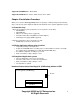
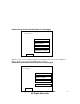
Hardware Connection with Hard Drive for Coolcopy3 Coolcopy 3 IDE 3 CD-RW IDE 2 CD-RW IDE 1 CD-RW IDE 0 CD-Rom/HDD Power When the system connects with the hard drive, the hard drive must connect on the IDE 0 port with the “Master” setting and the CD-ROM must set at “Slave”. Hardware Connection without Hard Drive for Coolcopy3 Coolcopy 3 IDE 3 CD-RW IDE 2 CD-RW IDE 1 CD-RW IDE 0 CD-Rom Power Copyright ©2005 by ILY Enterprise Inc. All Rights Reserved.
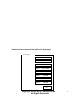
Hardware Connection with Hard Drive for Coolcopy7 Coolcopy 7 IDE 4 CD-RW IDE 3 CD-RW IDE 2 CD-RW IDE 1 CD-Rom/HDD IDE 8 CD-RW IDE 7 CD-RW IDE 6 CD-RW IDE 5 CD-RW Power Copyright ©2005 by ILY Enterprise Inc. All Rights Reserved.
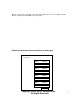
When the system has a hard drive connected, the hard drive must connect on IDE 0 port with “Master” setting and the CD-ROM must set at “Slave.” Hardware Connection without Hard Drive for Coolcopy7 Coolcopy 7 IDE 4 CD-RW IDE 3 CD-RW IDE 2 CD-RW IDE 1 CD-Rom IDE 8 CD-RW IDE 7 CD-RW IDE 6 CD-RW IDE 5 CD-RW Power Copyright ©2005 by ILY Enterprise Inc. All Rights Reserved.
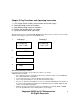
Chapter 3 Key Functions and Operating Instruction 1. 2. 3. 4. 5. LCD Display Panel: Display main functions and all messages. Scroll up through menus or functions. Scroll down through menus or functions. Execute the function which you select. Cancel the function which you select. After turning the power on, the Coolcopy CD Duplicator will execute a self test for a few seconds. After the self testing procedure runs, the LCD will show: 1. Coolcopy3: CD Duplicator 1-3 ver: 1.10B 2. 3. 4.
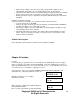
• • • When a Copy completes, the passed (correctly copied) CD discs will be ejected automatically. The default is to eject automatically, but this can be changed. Failed discs will remain in writers. The default setting is keeping failed discs in the writers, but this can be changed. Press the buttons on the drivers to take the failed CDs. During operation do not press any button, interruption will harm the device. CDs will be damaged. 2. Without a hard drive installed If you don’t install a 3.
and failed ones will remain in the writers. 4.2 Test Function 2 Test will simulate the copying process. When the simulation completes, the discs will remain blank. Press “ENT” button to start the disc simulation or press “ESC” to exit. 2. Test If you use CD rewriteable discs that contains data, the old Data will be quickly erased before before simulation begins: LCD will show the following testing Information: . When the process is finished, the LCD will show the following message: Testing-24X 0% 650.
Press “ENT” button to verify. LCD will shows as follows: LCD will show verification information as follows: When the verification process is finished, the LCD will display the result as follows: 4. Verify Verify--24X 0% 650.0MB 74:00 4. Verify OK: 03 4.5 Compare Function 5 Compare is to make a comparison between the source and the target CDs after copying. Select Function 5. Put the source CD into CD-ROM and the target CDs into CD writers. Press ENT to compare.
4.6 Prescan Use the prescan function to scan if the source CD can be read correctly and also to test the reading speed. Select function 6. Put the source CD into CD-ROM. Press ENT to prescan, LCD will show the scanning information as follows: 6. Prescan Scaning-24X 0% 650.0MB 74:00 If the master of the disc can read correctly, the source CD has no problems. LCD will show the following: PreScan OK! If the master disc cannot be read correctly, the LCD will show the message as follows: PreScan Fail! 4.
8. Select Source Select function 8. Press ENT and then use arrow button to select the source. After selecting source, press ENT and LCD will show the following: Src: CD-ROM 01 IDE0 Slave CD-ROM selected! Note: Suppose you select HDD as the source and try to copy from one of its partitions, but the partition contains no data. An error message will then appear on your LCD.
When the image is successfully deleted from the hard drive, the LCD will show as follows: Partition A: Image is deleted 4.9.3 Image Info This function shows the basic information of an image file stored in a particular partition. Press ENT to show the disc information. The LCD will show the total sessions and tracks in the partition. 9-03.Image P: A Image Info Total 01 Sessions Total 01 Tracks Press ENT again. The LCD will show the total time and capacity in the hard drive of partition.
If comparison fails, LCD will show the number of discs failed and succeeded. Press ENT to see the comparison information. If the comparison fails, the LCD will show the reason as follows: Compare OK: 0 Fail: 1 Diff: 0 Src: 01 CD-ROM Total: 0 Bytes Src: 02 CD-RW TOC not match 4.9.5 Select Partition This function is to select a partition in the hard disc. Press ENT button to change the setting. 9-05.Image P: A Select Image After installing a hard disc, duplicator will format it automatically.
Function 10, Edit Track, allows you to edit a collection of favorite songs from CDs. You’re able to collect different tracks or songs on a number of CDs and merge them onto a single CD. This process can be divided up into four parts: CD to CD, CD to HDD, Play Audio Track and Close Session. Press ENT and use the arrow button to select function 10. 10. Edit Track 4.10.1 CD to CD Edit Select “CD to CD Edit” to select one or more tracks from CD-ROM and then copy onto blank CDR/RWs.
LCD will show copying information as follows: The 2/2 means the second track of all tracks you have selected. So far you have selected two tracks from two different CDs. Copying- 24X Edit 1/10 - > 2/2 When copying is finished, the LCD will show the following message: Burn Complete! OK: 03 The system will ask if you want to continue editing. Use arrow button to select “no” then press ENT. Continue edit next Disc?No The system will ask to close the disc session.
button to make “Yes” or “No” selection. 16 If “Yes” is selected, the source disc will be automatically ejected. Insert another disc. Follow the steps to select the track that you want to edit. Then press ENT button. When the track selection is made, use arrow button to move to the “End” manual. Press ENT button to finish disc editing. Use arrow button to make a selection. The track will be loaded as an image file onto hard drive. LCD will the following information.
keep the data image or “Yes” to overwrite it. Image Exists Overwrite?Yes LCD will show the moving information as follows: Moving to P: A 0% When moving is finished, the LCD will show the message as follows: Moving to P: A OK! 4.10.3 Play Audio Track This function allows your machine to be utilized as a music player. Plug in an AV terminal in the audio port on the back of the device. Press ESC and the arrow button to enter the play audio function. Use arrow button to select track you are going to play.
4.11.1 Language (optional) Here are the available languages on the LCD: English, Traditional Chinese, Simplified Chinese and Japanese. Press ENT to change the setting and ESC to exit. 11-01. Setup Language 4.11.2 Burn Speed This setting controls the burning speed of CD writers. Default setting is “Auto,” which would use the highest available writing speed of the writer. Press ENT to enter the setting. Use arrow button to change the burning speed then press ENT. 4.11.
4.11.6 Auto Verify This setting allows you to automatically verify if target CDs can be read after copying. Press ENT button to enter the following figure: Use arrow button to change the “On” or “Off” setting. Then press ENT or press ESC to go return to 11-06 menu. 11-06. Setup Auto Verify Auto Verify Off 4.11.7 Auto Compare This setting allows you to automatically compare the source CD and target CDs after copying. Press ESC button and arrow to enter setting. 11-07.
Use arrow button to select Eject All Disc, then press ENT or press ESC to return to 1109 menu. Eject Disc Eject All Disc Use arrow button to select Do Not Eject. Then press ENT or press ESC to go back 11-09 menu. Eject Disc Do Not Eject 4.11.10 Burn on the Fly This setting lets you controls the burning methods. When the setting is “On”, the data will copy directly from source drive to the target drives. When the setting is “Off”, the data will load into a partition of the hard drive first.
4.11.13 Device Info This function shows the information of the CD-ROM and any CD writer you have installed. Press ENT button to enter the device information. 11-13. Setup Device Info 00 IDE0 Master Use arrow button to select the device or press ESC to go back 11-13 menu. Press ENT button to see the device information and ESC to return to the 11-13 menu. Use arrow button to select another device or press ESC to return to the 11-13 menu.
4.11.15 Quick Erase This function will quickly erase the data on the disc. 11-15. Setup Quick Erase Press ENT button to enter the Quick Erase and ESC to exit. Use arrow button to confirm whether you want to erase the data. Select the “Yes” or “No” setting. Then press ENT or press ESC to return to 11-15 menu.
Use arrow button to change the setting. Then press ENT or ESC to return to the 12-01 menu. UnderRun Protect On 4.12.2 Overburn This setting lets you decide whether to copy beyond the limit of the CD or not. Press ENT button to enter Overburn. 12-02. Adv Setup Overburn Use arrow button to change the setting. Then press ENT or ESC to return to the 12-02 menu. Overburn On 4.12.3 Read Error Skip This function allows you to neglect any error that occurs during copying.
Use arrow button to change setting to Disk. Then press ENT or ESC to go back to the 1205 menu. Use arrow button to change setting to Parti. Then, press ENT or ESC to go back to the 12-05 menu. Verify Disk or Partition? Disk Verify Disk or Partition? Parti 4.12.6 Burn-in This function is a burn-in test, which will simulate the copying process multiple times. After each cycle, the CDs on the CD writers will be ejected automatically and re-inserted again for continuous testing.
System will search the new firmware from the CD and the LCD will show the process as left. When find the new firmware, just press “ENT” button. The system will update it. Searching F/W--XXX/XXXXX 4.12.8 Compare Firmware This function will help you compare your current control firmware version and the updated version in your firmware disc that you insert into the CD-ROM. Press “ENT” button to enter “Compare Firmware” and “ESC” to exit. . 12-08. Adv Setup Compare Firmware 4.12.
Chapter 5 Trouble Shooting 1. No display on LCD or the unit does not operate when power on. • Please check the connection of power cable and that the power outlet is normal. • Turn off the power of machine, open the case of duplicator, and check if there are any problems with the power cable. 2. LCD shows the Error message. • During operation like Copy, Test, Compare and Verify, you may press ESC button to abort the operation. An Error message will be shown no the LCD.
8. Can not find the “12. Adv Setup” function. • Press “ESC” button for 2 seconds to enter the “Adv Setup”. 9. To cancel the duplicator working process. • Press “ESC” button for 2 seconds to cancel any “Copy”, “Test”, or “Verify” etc. function while the job is in progress. Copyright ©2005 by ILY Enterprise Inc. All Rights Reserved.