What's Data Driver? 2 Accessories 3 Hardware 4 Specifications and System requirements 5 Install program 6 Connect USB cable to USB Port 12 DataPlay Disk Insertion 13 Data Driver DPD-100 is a potable drive using DataPlay Engine and How to use DataPlay Console 14 USB port.
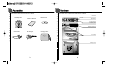
Each Part name of Data Driver DPD-100 is as below Data Driver DPD-100 contents are as below.
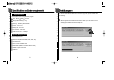
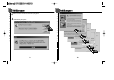
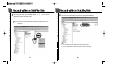
Specifications To connect Data Driver DPD-100 to PC and copy files, please install S/W as following. Slim Potable Driver using DataPlay engine Size : 84mm 68mm 21.5mm 1 Weight (W/O Battery) : 97g Memory : DataPlay Disk 500MB When Program CD is inserted screen below is show up. In case auto run is not working open CD-Rom drive and run Setup.exe Power : Li-Ion 3.
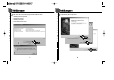
2 Click "Press Me to Install" then program will be installed as below 1. DataPlay Base Components 2. Install Device Drivers 3. DataPlay File System 4.
Install Device Driver contents are not shown up as graphic 4 Install DataPlay File System Click Click Next Next Yes Yes Next Next Next Next Finish Finish 9 10
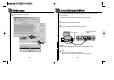
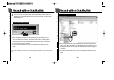
5 To store data to DataPlay media Data Driver DPD-100 has to be connected with PC by USB Cable (If your PC doesn't have USB Port, Please purchase one near store.) Install Java Runtime Environment 1 2 Connect the cable to USB port of your PC. Connect the cable to USB port of Data Driver DPD-100. PC USB Port Data Driver DPD-100 USB Port Yes Yes Next Next USB USB means Universal Serial Bus connecting a device(hardware) to a PC. Caution ! 1. Do not use any USB cable except supplied one. 2.
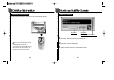
DataPlay Disk Insertion DataPlay Console In order to write & store data on a Disk, users need to insert DataPlay Disk first. Eject Button REC Button DataPlay Console close button Memory size of a DataPlay Disk is total 500MB(250MB on each side) It's possible to write upto 250MB on each side and delete the data. However, the deleted space will not be recovered.
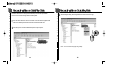
Data Driver DPD-100 is a storage device with USB port and cable upto 500MB. Here's how to record and storage data on DataPlay Disk. 2 After selecting the file(s), click the right button of mouse and select "Copy". First, Data Driver DPD-100 and PC should be connected with the supplied USB cable and a DataPlay Disk should be inserted in Data Driver DPD-100 1 Select file(s) to be recorded in Windows Explorer or My Computer. Note : You can move the file(s) by Drag & Drop.
3 After copying the file(s), select "DataPlay drive(D: , F: , G: , ...) Then, click the right button of mouse and select "Paste". 4 You can see the selected file(s) were moved to the targeted drive(folder). Note : Drive name of Data Driver DPD-100 will be subordinate drive to CD Rom drive. Note : 1. Do not disconnect the cable while recording the file(s). 2. It is not completed to record the selected and moved file(s).
5 There are two ways to record the file(s). One is with DataPlay Console which was installed and run automatically when the device was connected. The other is with Windows Explorer. Record with Windows Explorer Record with DataPlay Console Click Click 1) After moving(paste) the file(s), activate DataPlay Console by clicking the icon on the screen bottom if it's not shown. Then click the "REC" button. The file(s) will be transferred and saved on the DataPlay Disk with "PLAY LED" lamp.
There are two ways to eject DataPlay Disk. One is with DataPlay Console which was installed and run automatically when the device was connected. The other is with Windows Explorer. Eject DataPlay Disk with Windows Explorer Note: If you eject DataPlay Disk without completing the process of record file(s), DataPlay Disk will be ejected after recording file(s) automatically. Eject DataPlay Disk with DataPlay Console Click Click Click the "EJECT" button. Then, DataPlay Disk will be ejected.
DataPlay Disk is to be used for only DataPlay Engine enabled products. Properties of DataPlay Disk - You can purchase DataPlay Disk optionally. - Total 500MB. 250MB on each side - File(s) can be deleted. However, cannot use the deleted space anymore. Power Supply of Data Driver DPD-100 Power is supplied by rechargeable Li-Ion 3.7V battery internally placed. Using DC charger, you can recharge the battery easily. If the battery is running out, Low Battery LED lamp will be turn on.
NOTE : This equipment has been tested and found to comply with the limits for a Class B digital device, pursuant to Part 15 of the FCC Rules. These limits are designed to provide reasonable protection against harmful interference in a residential installation. This equipment generates, uses and can radiate radio frequency energy and, if not installed and used in accordance with the instructions, may cause harmful interference to radio communications.
27 28
Phone : 82-54-338-6000 Facsimile : 82-54-337-3075 Homepage : http://www.m-any.com e-mail: hwihome@chollian.