
user manual




Table Of Contents
- About This Document
- 1 Safety Precautions
- 2 Product Overview
- 3 Quick Start
- 4 Configuring the WAN Interface
- 5 Configuration of WLAN
- 6 Configuring Frequently Used Functions
- 7 Maintenance Guide
- 8 FAQs
6 Configuring Frequently Used Functions
Huawei Proprietary and Confidential
Copyright © Huawei Technologies Co., Ltd.
6-5
Step 3
Double click the
USBDisk_1
folder, and then you can see the folder structure of your
portable storage device.
----End
6.3.3
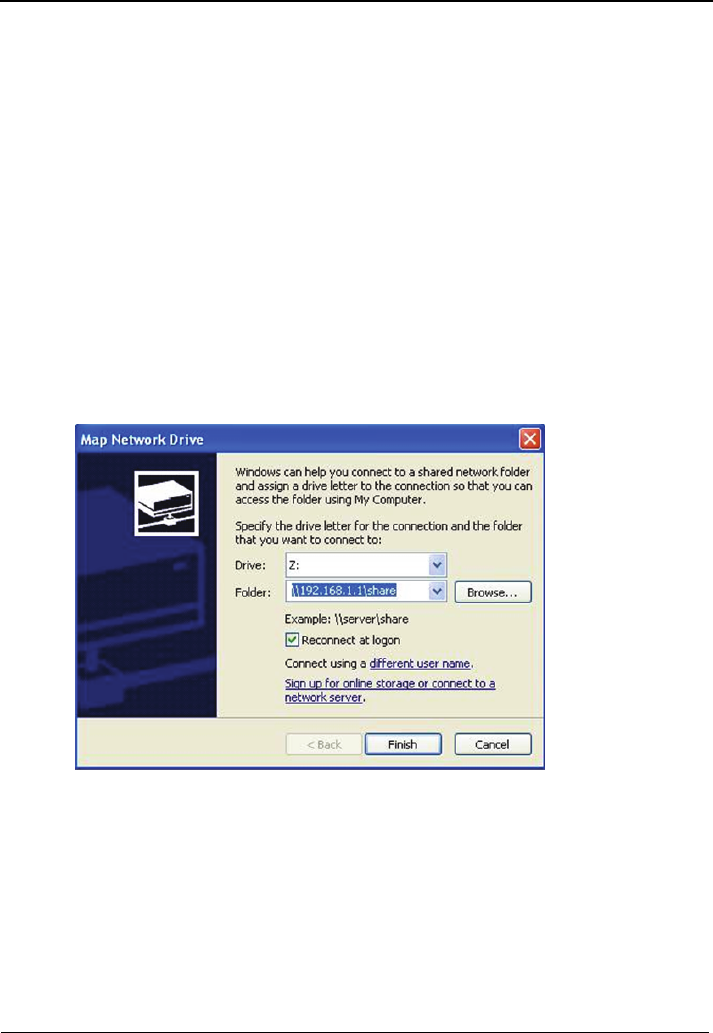
Figure 6-4
Accessing the Storage Device by Mapping Network Drive
The terminal allows you to accessing the portable storage device by mapping as a
network drive, do as follows:
Step 1
Right click
the
My Computer
icon on the desktop of your PC.
Step 2
Choose
Ma
p Network Drive
to display the
Map Network Drive
page, see
Figure 6-4.
Step 3
Sp
ecify the drive name (take
Z
as an example) in the
Drive
drop-list box.
Step 4
Enter the
path of the shared folder:
\\192.168.1.1\share.
Step 5
Click
finish
.
Step 6
Double click th
e My Computer icon to see a mapped network drive named Z.
Step 7
Double click th
e
Z
disk to see the content in your portable storage device.
Map Network Drive p
age
----End