
User Guide



Table Of Contents
- Getting to know your MateBook X Pro
- Initial setup
- Getting started
- Charging your MateBook X Pro
- Features
- One-touch log in. Password free
- HUAWEI MateDock 2
- Safety information
- Electronic device
- Interference with medical equipment
- Protecting your hearing when using a headset
- Areas with flammables and explosives
- Traffic security
- Operating environment
- Child's safety
- Accessories
- Charger safety
- Battery safety
- Cleaning and maintenance
- Environmental protection
- Disposal and recycling information
- Reduction of hazardous substances
- EU regulatory conformance
- Frequency Bands and Power
- Accessories and Software Information
- ErP Product Information
- FCC Regulatory Compliance
- Industry Canada compliance
- Personal Information and Data Security
- Legal Notice
4
Getting started
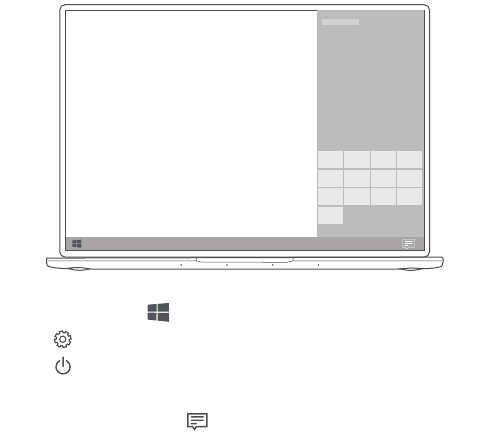
Start menu
On the home screen, click to open the start menu. You can:
•
Click to access the MateBook X Pro settings.
•
Click to turn off or restart your MateBook X Pro, or enable sleep mode.
Action center
To launch the action center, click . You can then:
•
Quickly access the settings, VPN, and projector screens.
•
Quickly change frequently-used settings (such as airplane mode and screen
brightness).