
User Guide



Table Of Contents
- Getting to know your MateBook X Pro
- Initial setup
- Getting started
- Charging your MateBook X Pro
- Features
- One-touch log in. Password free
- HUAWEI MateDock 2
- Safety information
- Electronic device
- Interference with medical equipment
- Protecting your hearing when using a headset
- Areas with flammables and explosives
- Traffic security
- Operating environment
- Child's safety
- Accessories
- Charger safety
- Battery safety
- Cleaning and maintenance
- Environmental protection
- Disposal and recycling information
- Reduction of hazardous substances
- EU regulatory conformance
- Frequency Bands and Power
- Accessories and Software Information
- ErP Product Information
- FCC Regulatory Compliance
- Industry Canada compliance
- Personal Information and Data Security
- Legal Notice
3
Initial setup
Caution
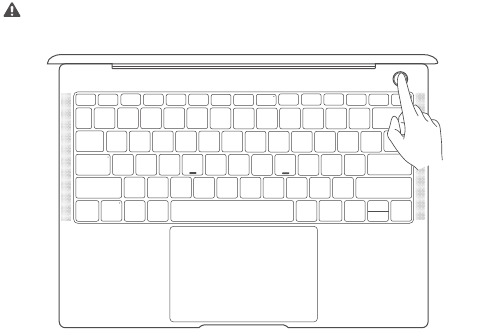
Charge your MateBook X Pro before using it for the first time. Press and hold the
power button to turn your MateBook X Pro on.
When you use your MateBook X Pro for the first time, follow the onscreen instructions to
complete the setup.
•
Connect to a wireless network
•
Log in to your MateBook X Pro using a Microsoft account
Log in with your Microsoft account (such as Outlook.com) to access a range of
Microsoft services on your MateBook X Pro.
•
Set a PIN
Use your PIN to log in to your MateBook X Pro and other apps and services.
•
Set up Windows Hello and add a fingerprint
Featured with a fingerprint sensor power button, you can power on your MateBook
X Pro by simply pressing the power button with no need of entering password. Quick
yet secure.