
User Guide

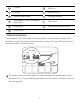


Table Of Contents
- Getting to know your MateBook X Pro
- Initial setup
- Getting started
- Charging your MateBook X Pro
- Features
- One-touch log in. Password free
- HUAWEI MateDock 2
- Safety information
- Electronic device
- Interference with medical equipment
- Protecting your hearing when using a headset
- Areas with flammables and explosives
- Traffic security
- Operating environment
- Child's safety
- Accessories
- Charger safety
- Battery safety
- Cleaning and maintenance
- Environmental protection
- Disposal and recycling information
- Reduction of hazardous substances
- EU regulatory conformance
- Frequency Bands and Power
- Accessories and Software Information
- ErP Product Information
- FCC Regulatory Compliance
- Industry Canada compliance
- Personal Information and Data Security
- Legal Notice

2
* Recessed camera
The MateBook X Pro comes with a recessed camera . Press the button shown in the
illustration to open the camera and take photos or videos with apps like Camera. Press
the button again to hide the camera .
The camera button is connected to the water drainage hole on the back of your
MateBook X Pro. If you accidentally spill water onto the camera, it will drain out from
the drainage hole.
Clickpad
Right key
Left key Microphone x 4
Camera draining hole Charging indicator
Thunderbolt™ 3 port (compatible
with USB-C)
USB-C port
Headset jack Hidden ambient light sensor
Touchscreen