
MateBook 16s User Guide-(CREF-X,Windows11_01,en-gb)

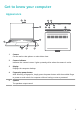
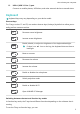
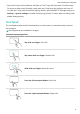
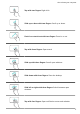
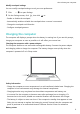
Table Of Contents
- Contents
- Get to know your computer
- Start the computer
- F10 factory reset (not available in some regions)
- Eye Comfort mode
- Accessories and extensions
- Safety information
- Electronic device
- Interference with medical equipment
- Protecting your hearing when using a headset
- Areas with flammables and explosives
- Traffic safety
- Operating environment
- Child's safety
- Accessories
- Charger safety
- Battery safety
- Cleaning and maintenance
- Disposal and recycling information
- Reduction of hazardous substances
- Personal Information and Data Security
- Legal Notice
- Copyright © Huawei 2022. All rights reserved.
- Trademarks and Permissions
- Notice
- Third-Party Software Statement
- DISCLAIMER
- Import and Export Regulations
- Privacy Policy
- For More Help
- ALL PICTURES AND ILLUSTRATIONS IN THIS GUIDE, INCLUDING BUT NOT LIMITED TO THE DEVICE COLOUR, SIZE, AND DISPLAY CONTENT, ARE FOR YOUR REFERENCE ONLY. THE ACTUAL DEVICE MAY VARY. NOTHING IN THIS GUIDE CONSTITUTES A WARRANTY OF ANY KIND, EXPRESS OR IMPLIED.

13 USB-A (USB 3.2 Gen 1) port
Connects to mobile phones, USB drives, and other external devices to transfer data.
Keyboard
Keyboard keys may vary depending on your device model.
Shortcut keys
The F keys, such as F1 and F2, are used as shortcut keys (hotkeys) by default to allow you to
easily perform common actions.
Decrease screen brightness.
Increase screen brightness.
Enable, disable, or adjust the brightness of the keyboard backlight.
If there is no icon on the key, the keyboard does not have a
backlight.
Mute or unmute.
Decrease the volume.
Increase the volume.
Enable or disable the microphone.
Switch projection mode.
Enable or disable Wi-Fi.
Open HUAWEI PC Manager.
Switching between shortcut and function key modes
In function key mode, the F keys have dierent functions depending on the software that is
running.
To use the F keys as function keys, you can:
Get to know your computer
3