
Mellanox MLNX-OS® User Manualfor SX1018HP Ethernet Managed Blade Switch



Rev 1.6.9
Mellanox Technologies
18
Mellanox Technologies Confidential
Step 3. Login to the switch (default username is admin, password admin)
Step 4. Once you get the prompt, you are ready to use the system. Refer to MLNX-OS Command Refer-
ence Guide for additional information on the CLI commands.
2.3 Starting the Web Interface
To start a WebUI connection to the switch platform:
Step 1. Set up an Ethernet connection between the switch and a local network machine using a stan-
dard RJ-45 connector.
Step 2. Open a web browser – Internet Explorer 7.0 Chrome or Mozilla Firefox 3.0.
Note: Make sure the screen resolution is set to 1024*768 or higher.
Step 3. Type in the IP address of the switch or its DNS name in the format: http://
<switch_IP_address>.
Step 4. Login to the switch (default user name is admin, password admin).
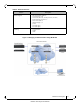
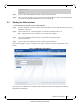
The following figure shows an example of the login window for remote management of the
switch.
Figure 2: MLNX-OS Login Window
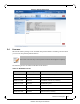
After you log in to MLNX-OS, a (default) status summary window will be displayed containing
the following information:
Mellanox Switch
switch >