
Frequently Asked Questions
Mouse, the mouse would not be sleeping because it would have been moving to perform the
shutdown.)
If the PC has an Atheros AR9285 Wi-Fi adapter, we have seen cases where the mouse does not re-
connect after a PC restart. With older Atheros drivers (version 8.0.0.238), this problem does not seem
to exist. However, newer drivers such as version 9.0.0.173 do exhibit the problem. HP is currently
working with Atheros on a fix for this issue. The only current user solution is to load the older driver
version, or disable/and then re-enable the SoftAP module.
Disabling and re-enabling the SoftAP module can be done by opening a command-line Window (DOS
box), and typing “netsh wlan stop hostednetwork” <press enter>, then typing “netsh wlan start
hostednetwork” <press enter>
Question: My HP Wi-Fi Mobile Mouse sometimes “pauses”.
Answer: Since your HP Wi-Fi Mobile Mouse communicates using the 802.11 wireless adapter in your PC,
if you connect or disconnect from a wireless network, Windows gives priority to the wireless networking
operation, and your mouse may pause for several seconds.
If this pause happens outside of connecting or disconnecting from a wireless network, please check to
make sure that your PC’s Wi-Fi adapter drivers are up to date. Also, please make sure that the batteries
in the HP Wi-Fi Mobile Mouse are not weak.
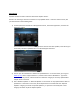
Question: When I click on the “User’s Guide” link from the mouse control center (under the “Discover”
section), the user’s guide does not launch.
Answer: There is a known defect where on some systems, the user’s guide (PDF) does not launch from
that link. This has been corrected in the latest version of the HP Wi-Fi Mobile Mouse software. In the
short term, help can be accessed via the “Help files in Additional Languages” (and then double-click the
PDF for your desired language), or by launching the control center and pressing the “F1” function key on
your keyboard.
It is also important to note that if you do not have a PDF reader installed, the “User’s Guide” link will
also appear to not be working. Please make sure that the Adobe Acrobat reader is installed.
Question: When I start a wireless ad-hoc network, my HP Wi-Fi Mobile Mouse stops working.
Answer: The HP Wi-Fi Mobile Mouse is not compatible with ad-hoc wireless networks. The ad-hoc
wireless mode and the Microsoft SoftAP virtual adapter interface do not co-exist (and the SoftAP
module is required by the Wi-Fi mouse. There is a Microsoft bulletin that states: