
Frequently Asked Questions
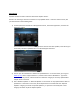
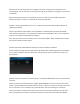

Restart the PC once this Symantec rule is applied to the server, and the mouse should then work
normally (Note: The user will have to manually go through the Wi-Fi Mouse pairing process after the PC
is rebooted).
HP has worked with Symantec to automatically correct this issue in the next update of Symantec
Endpoint Protection, but this is not slated to be released until Q1 2012.
Question: The pairing wizard gives me an error “Unable to communicate with the Wi-Fi Adapter” or
“SoftAP not available”.
Answer: Some older wireless adapters are not Windows 7 certified and do not support the SoftAP
function built into Windows 7. Since the HP Wi-Fi Mouse uses the SoftAP function, it is not supported
on these non Windows7 certified wireless adapters.
Also, make sure that your PC’s wireless function is turned on/enabled. Many notebooks have a switch
that turns the wireless function off/on.
Question: My HP Wi-Fi Mobile Mouse failed to pair after the software installation.
Answer: Retry the pairing process by opening the “HP Mouse Suite” software (double-click the desktop
icon), choose “Configure”, and then click on the “Pairing Wizard” button, and follow the steps in the
pairing wizard.
Question: When I shut down my and then restart it, the HP Wi-Fi Mobile Mouse does not automatically
reconnect.
Answer: If the PC has an Intel-based Wi-Fi adapter (Intel 5100AGN, etc), there is a known issue. If the
system is powered down and restarted while the mouse is in the first 2 minutes of inactivity, the mouse
will not reconnect. This is caused by a bug in the Intel driver, and we are looking into a firmware
workaround. Note: In order to get into this case, the user must be using the keyboard or some other
built in pointing device to shut the system down (otherwise, if they were using the HP Wi-Fi Mobile