
Frequently Asked Questions

Wi-Fi Drivers
Question: How do I know if I have the latest Wi-Fi adapter drivers?
Answer: You have to go check to see if there are any updated drivers. There are several sources, but
you should check in the following order:
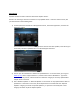
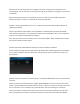
1) For HP systems that include the “HP Support Assistant”, launch that application, and click the
“Maintain” button:
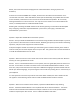
Click the “Refresh” button to have the application check for the latest updates, and if found, you
can directly install the updated drivers from the HP Support Assistant:
2) Look on your PC manufacturer’s website for updated drivers. In the case of HP, you can go to
www.hp.com, select “Support & Drivers”, and then select “Drivers & Software”. Type in the
model number of your PC, and look under the “Network” category to see if any updated Wi-Fi
adapter drivers are listed.
3) Start “Windows Update” or “Microsoft Update” to see if there are any updated drivers that are
posted there. Note that in most cases, Wi-Fi adapter drivers are listed under the “Optional
Updates” category (not under “Important Updates”), so you have to manually look in that
category and select any Wi-Fi adapter updates.