
HP Server Appliance 3110 - Hardware Installation Map


1
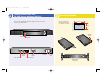
Connect the supplied DB-9 console cable to the console port of the VPN device
and to the COM port on your PC. Make a note of the communication port number
on your PC.
2
Plug in the power cable appropriate for use in your country.
3
Turn on the VPN device by setting the power switch to the 1(one) position.
4
Configure and run your terminal emulation program (such as HyperTerminal*),
to create an active console session, using the following settings:
•9600 baud • No parity • No hardware flow control
•8 bits • 1 stop bit
5
In the console window, select Transfer, then Capture Text.
6
In the File menu, select Save.
7
In the Save in and File name fields, select the folder and file name
underwhich you want to store your session file.
8
Click Save.
9
Press Enter three times. Licensing text appears with a prompt. Press the
space bar or press Enter to scroll through the license agreement.
To accept the license agreement terms, press Y.
A name-and-state prompt appears:
hostname:SAFE>
10
Wait 60 seconds as the device changes from safe mode to normal mode.
11
At the name-and-state prompt, enter
enable
.
12
At the name-and-state prompt, enter
admin
.
13
At the name-and-state prompt, enter
setup
.
The system prompts you for the host name.
14
Enter a name up to eight characters long. For example,
vpn1
.
The system displays a series of prompts and, in square brackets,
examples of responses.
15
Respond to the prompts (shown at right) by entering the appropriate
information and pressing Enter.
Note: When the system prompts you to enter the time zone, enter the
time zone with respect to Greenwich Mean Time. For example, to set the
time zone for Boston, enter
timezone est 5 edt
.
This completes the initial hardware setup. Remove the console cable from the VPN device.
Connecting the Device to the Network
4
AC Power Cord
10/100
Ethernet
Once you have connected your VPN device to the network behind your
firewall, configure the device using Hewlett-Packard SA3000 Series VPN
Manager included on the CD-ROM. Follow the instructions in the
Installation Guide for installing the VPN Manager.
Performing the Initial Hardware Setup
To connect the VPN device to the network:
1 Turn the device off before connecting network cables.
2 Connect the supplied Ethernet cables to the Ethernet interfaces.
3 Connect your Ethernet LAN cables to the shielded cables.
4 Turn the device on.
3
Console Port
AC Power Cord
To COM Port
Bridge Mode On (Y/N) [n]:
Enter int E0 IP Address [0.0.0.0]:
Enter int E0 IP Subnet Mask [255.0.0.0]:
Enter int E1 IP Address [0.0.0.0]:
Enter int E1 IP Subnet Mask [255.0.0.0]:
Enter Default Gateway [0.0.0.0 | interface no]:
Enter Manager Password [password]:
Enter time zone [GMT]:
Enter year [2000]:
Enter month [9]:
Enter day [1]:
Enter hour [16]:
Enter minute [28]:
Enter second [1]:
Do you wish to save configuration to flash? [y]:
HP sa3110.qxd 2/28/01 10:00 AM Page 3