Integrate Logins with HP CIFS Server, HP-UX, and Windows 2003R2/2008 Version 2.00 October 2009 Version 2: Validate with Windows Server 2008, add SSH config parameters, CIFS A.02.
Legal Notices The information in this document is subject to change without notice. Hewlett-Packard makes no warranty of any kind with regard to this manual, including, but not limited to, the implied warranties of merchantability and fitness for a particular purpose. Hewlett-Packard shall not be held liable for errors contained herein or direct, indirect, special, incidental or consequential damages in connection with the furnishing, performance, or use of this material. Warranty.
Table of Contents Legal Notices................................................................................................................................... 2 Table of Contents ................................................................................................................................. 3 Introduction ......................................................................................................................................... 5 Overview ...................................
Introduction The Multi-OS enterprise often must maintain multiple operating system login credentials for a single user on various OS platforms. Management of user accounts over several OS platforms often requires coordination of administration from separate internal organizations. This can be inefficient, costly, and prone to error. Unified Login on HP-UX is a method of integrating user account data for separate applications and operating systems.
Overview An enterprise multi-OS data center will often have concurrently running Windows server versions, Linux, and multiple vendor UNIX operating systems. Some of these OS platforms will require interoperability, which creates a problem for user logon data that must span multiple operating systems and multiple vendors. This is a problem that results in duplicate information, duplication of effort, and is prone to error for synchronization and version control.
Solution Components The following components are used to create the Unified Login solution for Windows and HP-UX: Windows 2003R2 Enterprise Active Directory Server o Windows 2003R2 and 2008 are the preferred AD versions because the schema has the RFC2307 attributes installed by default.
Windows Identity Management For UNIX o Identity Management for UNIX is included on the W2003R2 and 2008 installation image o IMU is not installed by default o IMU is required for the management console that includes tabs for UNIX user and group management (2008 version is 6.0) Services for UNIX 3.5 will also work for this purpose SFU does not use the RFC2307 compliant attributes. For instance, a UNIX user UID is stored in msSFU30UidNumber (non-compliant), as opposed to uidNumber (compliant).
HP CIFS Server (Samba) o Version A.02.04 Based upon Samba 3.0.30 NOTE: All HP-UX component software products are available for free at www.software.hp.com.
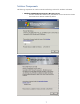
Unified Login Solution Configuration Windows Identity Management for UNIX Installation While Services For UNIX is straightforward to install, Identity Management for UNIX is not. To install it, you will need your installation media. In Control Panel, start Add/Remove Programs. Click on Add/Remove Windows Components. Select Active Directory Services and click Details. NOTE: For Windows 2008 screen shots, see Appendix E.
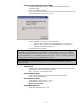
Select Administration Components and Server for NIS and click OK. This will install the management snap in for users ands and groups to manage the POSIX IDs. No NIS configuration is required.
Configure Users and Groups Create a new global security group on the AD with the “Users and Computers” snap-in. After the group is created, right click on the group object and select Properties. Select the “UNIX attributes” tab, then select the NIS Domain (this has nothing to do with UNIX NIS). The GID field will selfpopulate with the next available Group ID number – in this case the group is scoobies and the GID is 10000. Close this window. Create a new user on the AD.
These tasks have created a user and group on the Active Directory and each object has identifiers for Windows (SID) and Unix (group ID or user ID). Now run adsiedit.exe (see the Tools Appendix for instructions on how to acquire adsiedit.exe). Navigate to the CN=Users object in the local domain: Right click on the user and select Properties. This box displays the user object attribute schema and attribute values.
Close the window, select the group that was created earlier, right-click and choose Properties. Now scroll down to find gidNumber, and observe that the field is populated with the Group ID that will be used for HP-UX access. Milestone 1 Verify that the test user buffy can log into the domain from a domain Windows client.
Configure HP CIFS Server HP CIFS Server should be installed, running, and configured for Kerberos authentication as a member server in the Active Directory domain. If there are problems with configuring Kerberos, use the “HP CIFS Server and Kerberos” whitepaper to correctly configure the server. http://www.docs.hp.com/en/7213/HPCIFSKerberosV105.
Sample krb5.conf file: [libdefaults] default_realm = ATCWIN1.HP.COM default_tkt_enctypes = DES-CBC-CRC RC4-HMAC DES-CBC-MD5 default_tgs_enctypes = DES-CBC-CRC RC4-HMAC DES-CBC-MD5 default_keytab_name = "WRFILE:/etc/krb5.keytab" #The line above is not valid for HP CIFS Server A.02.04 and later. ccache_type = 2 clockskew = 1800000 [realms] ATCWIN1.HP.COM = { kdc = ATCWINVM1.ATCWIN1.HP.COM:88 admin_server = ATCWINVM1.ATCWIN1.HP.COM } [domain_realm] .hp.com = ATCWIN1.HP.
These ServicePrincipalNames match the CIFS Server “net ads status” output: dNSHostName: atcuxvm5.rose.hp.com userPrincipalName: HOST/atcuxvm5@ATCWIN1.HP.COM servicePrincipalName: HOST/atcuxvm5.rose.hp.com servicePrincipalName: CIFS/atcuxvm5.rose.hp.com servicePrincipalName: CIFS/atcuxvm5.atcwin1.hp.com servicePrincipalName: CIFS/atcuxvm5 servicePrincipalName: HOST/atcuxvm5.atcwin1.hp.
Note: A “net ads join” will by default add the HP CIFS Server to the computers container in the Active Directory schema. This can be customized to add the server to other containers in the schema by adding options for custom placement, such as “net ads join servers”, where servers is the destination OU in the directory. Milestone 2 At this point in the configuration a Windows user in the domain should be able to mount a share to the HP CIFS Server.
Configure LDAP-UX Client The next step is to configure the HP-UX LDAP-UX Client to retrieve logon user and group data from the Active Directory server. At the completion of this step, HP-UX commands like “id username”, “grget groupname” pwget username” will display user and group data from the AD. HP-UX local IDs like root will continue to reside in /etc/passwd. Step 1 – Proxy Account Add an HP-UX server proxy account to the AD. Use the user-computer snap-in on the AD.
Step 2 – Run Setup Log onto the HP-UX CIFS Server as root and change the directory to /opt/ldapux/config and run ./setup. A setup script will execute. Answer the questions with the information that is specific to your systems. The following example shows a basic configuration.
Select option 2 for Windows 2003R2 or 2008 Active Directory. Input the IP address for the Windows 2003R2 or 2008 Directory Server.
Choose the default Directory Server port number. Accept the default administrator user, or input your administrator.
Extend the schema for LDAP-UX. Do not accept the automount schema. Note: This step may not occur for subsequent server configurations in a domain. Accept Administrator to extend the schema. Note: This step may not occur for subsequent server configurations in a domain.
Enter the name of a profile object for LDAP-UX. Since most installations of Unified Login will likely require multiple HP-UX servers in a cluster, use the server uname to differentiate the profile name. The actual entry for the screen above was “cn=atcuxvm5profile,cn=system,dc=atcwin1,dc=hp,dc=com”.
The proxy user is a single entry in the System container, which is a minor addition to the Active Directory schema and should not be a lock-out for most IT policies. Supply the Administrator user and password.
Choose option #3 – ADS RFC 2307. Use SIMPLE authentication. NOTE: SIMPLE is the correct choice for this configuration because HP-UX users will be authenticated using Kerberos via PAM-Kerberos. SASL-GSSAPI is appropriate when using LDAP to perform authentication.
For this example, only one directory server is specified. For a production W2003R2/2008 domain, there would be backup domain controllers and those could be added. NOTE: Listing multiple directory servers provides redundancy for user/group UNIX ID retrieval. Kerberos KDCs can also be configured for redundancy in krb5.conf, as explained in the “Configuring PAM-Kerberos” chapter. For a default schema, enter the users container.
Accept the remaining defaults. Enter the distinguished name of the proxy user that we created in the first step.
Update the schema, and observe the output. Continue…….
For this example, there is no multiple-domain support. Start the LDAP-UX daemon.
Step 3 – Edit ldapux_client.conf Edit /etc/opt/ldapux/ldapux_client.conf to uncomment “password_as=”x”. This allows Secure Internet Services Telnet logins to work using Kerberos. Step 4 – Edit nsswitch.conf Edit /etc/nsswitch.
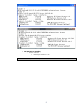
# pwget root: daemon:*:1:5::/:/sbin/sh bin:*:2:2::/usr/bin:/sbin/sh sys:*:3:3::/: adm:*:4:4::/var/adm:/sbin/sh smbnull:*:101:101:DO NOT USE OR DELETE - needed by Samba:/var/opt/samba/nologin:/bin/false . . buffy:*:10000:10000::/home/buffy:/bin/sh spike:*:10001:10001::/home/spike:/bin/sh # # grget root::0:root other::1:root,hpdb bin::2:root,bin sys::3:root,uucp users::20:root nogroup:*:-2: smbnull::101: . .
Configure PAM Kerberos Configuring PAM Kerberos on the local HP-UX server will re-direct authentication for kerberized HP-UX functions. These include local HP-UX logons, Secure Internet Services (telnet, ftp, etc…), or Secure Shell. HP CIFS Server does not require PAM Kerberos for Kerberos authentication. In earlier chapters, Kerberos for HP CIFS Server was already configured: 1. The Kerberos client was installed 2. /etc/krb5.conf was edited 3. The HP CIFS Server was joined to the domain a.
default = FILE:/var/log/krb5lib.log NOTE: When a krb5.keytab file is generated – either during a “net ads join” or a “net ads keytab create”, the WRFILE attribute must be un-commented. NOTE: For HP CIFS Server A.02.04 and later, remove the 5th line of the krb5.conf example above: default_keytab_name = "WRFILE:/etc/krb5.keytab" See the “HP CIFS Server and Kerberos” whitepaper Chapter 5 for complete instructions about WRFILE.
Step 3 – Verify Kerberos Logins To verify the correct authentication behavior of a local HP-UX login, log in as a Domain Controller resident user and then examine the DC Event Viewer for the login event. This event shows that buffy was issued a ticket for the HP-UX system atcuxvm5. An examination of the Wireshark trace shows the associated Kerberos traffic between the HP-UX system and the KDC (the Domain Controller where the event above occurred).
Here is the packet with the Ticket Granting Service Reply with the host principal from the KDC: host/atcuxvm5.rose.hp.com. This service principal has a key in the local krb5.keytab file on atcuxvm5 and is successfully authenticated. Note: The host/atcuxvm5.rose.hp.com principal key is resident in the krb5.keytab file from the “net ads join” command and the smb.conf variable “use Kerberos keytab = yes”. CIFS/Samba created this keytab file by default for this configuration. The Windows utility ktpass.
Solution Operation The Unified Login configuration is now complete. Login credentials for the Windows 2003R2/2008 domain originate from the Active Directory user objects. Logins to the HP-UX system use NSS LDAP to access user/group IDs from the Active Directory user and group objects, and use PAM Kerberos to authenticate the users for access to the HP-UX system.
buffy The domain member buffy logs into the domain on a Windows Vista client machine. Buffy is authenticated by the domain controller using Kerberos and retrieves the domain Security Identifier (SID) from the Active Directory user object – which also contains many other attributes, including RFC2307 attributes. Buffy mounts her home directory on the domain member server actuxvm5, which is an HP-UX server running HP CIFS Server.
The buffy client then presents the Kerberos ticket to the atcuxvm5 HP CIFS Server using the HP-UX Kerberos Client, which uses the matching key in the krb5.keytab file (refer to the HP CIFS Server and Kerberos whitepaper) to decrypt the ticket and successfully authenticates the user buffy. However, buffy does not have HP-UX credentials, yet. CIFS uses nsswitch and the LDAP-UX client to query the Active Directory for buffy’s RFC2307 attributes. These can be manually verified with HP-UX utilities.
Buffy now accesses her home directory on atcuxvm5 from the Windows Vista client. Buffy can also mount her home directory on atcuxvm6, which requires no duplicate user or group configuration because all of the user authentication and authorization data is stored centrally on the Active Directory. In addition, the AD is replicated throughout the domain on the other W2003R2/2008 Domain Controllers.
HP-UX Login Example HP-UX logins, either locally or through telnet, also use the Windows Active Directory to access user and group authentication and authorization data. Buffy logs onto an HP-UX system. The five RFC2307 attributes are retrieved by LDAP from the AD: UID name, UID number, GID number, home directory, and login shell.
Buffy retrieves her Kerberos ticket from the KDC and uses the host principal in the /etc/krb5.keytab file (shown with the klist command) to decrypt the ticket. Buffy is allowed to logon with her Kerberos credentials and POSIX authorization. Note: Observe how the service principal for the HP-UX login is host/atcuxvm5.rose.hp.com, and how for the CIFS mount it was cifs/atcuxvm5.rose.hp.com.
HP-UX Secure Internet Services Example HP-UX Secure Internet Services (SIS) provides “kerberized” internet services, like rlogin, telnet, and ftp. Using the Kerberos settings that exist for the Unified Login configuration is a good starting point for setting up SIS. To start and stop SIS on the HP-UX 11iv2 test systems: /usr/sbin/inetsvcs_sec enable /usr/sbin/inetsvcs_sec disable An overview of SIS is available in the Kerberos Client Admin Guide. Technical documentation for SIS exists solely as “man 5 sis”.
principal. This will allow the SIS ftp application to find the correct service principal on the initial search. On the Windows Domain Controller, use ktpass from the command line to create a new service principal for ftp. ktpass.exe –out c:\temp\ftpatcuxvm5.keytab –princ ftp/atcuxvm5.rose.hp.com@ATCWIN1.HP.COM –mapuser ATCWIN1\administrator – pass password –crypto DES-CBC-MD5 –pType KRB5_NT_PRINCIPAL +DesOnly Copy the output file (in the example it is ftpatcuxvm5.keytab) to the HP-UX server.
rlogin Example The rlogin feature of SIS uses the host principle that was created by the CIFS/Samba keytab file generation, so no special effort is required to configure a clean working example. Buffy has an existing login to the system atcuxvm5.rose.hp.com. A “klist” command shows that she has her default principals. She executes an rlogin to the system atcuxvm6.rose.hp.com, and gains access without providing a password.
Buffy has an existing login to the system atcuxvm5.rose.hp.com. A “klist” command shows that she has her default principals. She executes a telnet to the system atcuxvm6.rose.hp.com, and gains access without providing a password. The SIS telnet feature is more verbose than rlogin, so we get to see explicit messaging from the system about the status of the login attempt, which is nice.
HP-UX Secure Shell Example (SSH) HP-UX Secure Shell supports several authentication methods. For this example SSH will be configured using Kerberos authentication because it integrates into the same existing Unified Login design that has been shown for CIFS and Secure Internet Services. SSH uses the same secure authentication protocol as our earlier examples, but provides additional security by encrypting data transfers over the SSH tunnel.
Add the following lines to the account section: sshd sshd sshd account required account sufficient account required libpam_hpsec.so.1 libpam_krb5.so.1 libpam_unix.so.1 Our existing Kerberos krb5.conf and krb5.keytab files are compatible with SSH, so using our existing configuration, the systems are ready to execute an SSH tunnel using Kerberos authentication. ssh Example SSH also uses the host/atcuxvm6.rose.hp.com service principal from the KDC and the /etc/krb5.
Appendices Appendix A: Reference Documents NOTE: URLs are supplied for convenience. They could be obsolete, requiring search methods to locate the current document source. HP CIFS Server Admin Guide (use Kerberos settings from this paper, not the admin guide) http://www.docs.hp.com/en/netcom.html#CIFS%20(Common%20Internet%20File%20System)%20Server Basic HP CIFS Server administration. Should not be required for these tasks. HP-UX 11i Version 3 September 2008 Release Notes http://www.docs.hp.
Appendix B: Tools NOTE: URLs are supplied for convenience. They could be obsolete, requiring search methods to locate the current tool source. Microsoft adsiedit.exe Microsoft adsiedit.exe is available with Windows Support Tools. At this time, the following Microsoft link will supply information and downloads for Windows Support Tools and adsiedit.exe: http://technet.microsoft.com/en-us/library/cc755948.aspx Wireshark Wireshark is the industry standard network tracing tool. It is available at: http://www.
Appendix C: Access Control Lists (ACLs) HP CIFS Server provides a very useful feature for managing Windows user access to HP-UX resources: Access Control Lists. A CIFS/Samba share that is opened by a Windows client user has the functionality to allow the user to initiate a native Windows client File Explorer window and then add, delete, and manage Access Control Lists on the HP CIFS Server HP-UX file system. See the HP CIFS Server Administration Guide for more details.
Buffy mounts her home directory where she owns the file buffy_mount_home.pptx. She is able to add the user spike to the ACL of the file buffy_mount_home.pptx. The following output from the HP-UX getacl command matches the Windows File Explorer Security tab. # getacl buffy_mount_home.pptx # file: buffy_mount_home.pptx # owner: buffy # group: scoobies user::rwx user:spike:r-x group::r-class:rwx other:r-# Group Data Displaying group data for ACL management requires a separate process from user data.
In the “Configure Users and Groups” topic earlier, a UNIX group “scoobies” was created. The UNIX group scoobies is fully functional on the HP-UX server due to the LDAP-UX configuration. However, a Windows client cannot display and manage the UNIX scoobies group in the client File Explorer until several tasks are completed. Recall that the scoobies group is a Windows group that also has POSIX RFC 2307 attributes. So the same group is represented to two operating systems: Windows and UNIX.
Now that this mapping is configured, CIFS/Samba can source the UNIX group name from the groupmapping.tdb file, where the mapping data is cached. The following graphics show exactly how to add a group ACL to a resource, and show that the group scoobies can now be displayed and managed with the Windows File Explorer. In this example, Administrator did a right-click on the file slayers.txt, which resides on the \\atcuxvm6.rose.hp.com\BTVS share, then selected the Security tab.
Now click Add. Note that the default location is the W2003R2 domain. Click Locations.
Select your CIFS/Samba server for the location to display user/groups and click OK. Click Advanced, and then “Find Now”, and the entire list of UNIX users and groups will be displayed.
Note that the scoobies group is now visible. Select scoobies and click OK.
Click OK.
The UNIX group scoobies is now added to the ACL of the file slayers.txt on the HP-UX CIFS/Samba server \\atcuxvm6.rose.hp.com\BTVS share. The access control attributes displayed on the Windows File Explorer Security tab will be translated to the UNIX ugo permission sets. The Advanced tab can be selected for more granular Windows permission attributes, but these can only be translated to the UNIX ugo permission set. After selecting the desired permissions, click OK. # getacl slayers.txt # file: slayers.
Appendix D: Configuring For Availability The Unified Login configuration has several opportunities to configure access to multiple Windows Domain Controllers and/or KDCs to provide authentication redundancy. HP CIFS Server In the smb.conf file, the “password server = *” setting tells Samba to search for the nearest (fastest responding) Windows Domain Controller. An alternate setting allows for prioritizing the initial DC attempt: “password server = ATCWINVM1.ATCWIN1.HP.COM, *”.
Appendix E: Windows Server 2008 Identity Management for Unix Screen Shots IMU for 2008 uses a totally different user interface.
A reboot is required, then the installation resumes: 62
The installation completes: Configuring the users and groups proceeds as with W2003R2.
Appendix F: CIFS Server A.02.04 (Samba 3.0.30) Kerberos Service Principals HP CIFS Server A.02.04 is based upon Samba 3.0.30, and Samba made significant changes to the service principals that are written to the Active Directory and krb5.keytab file. Below are screenshots showing the new principal names. With the new Samba, only 2 principals are written to the AD. Both are HOST, thus eliminating the CIFS principals that were previously used in conjunction with HOST.
The new “klist –k –e” shows the new principals, which are missing the CIFS entries: # klist -k -e Keytab name: FILE:/etc/krb5.keytab KVNO Principal ---- -------------------------------------------------------------------------2 host/atcux14.rose.hp.com@WIN2K8.ATC.HP.COM (DES cbc mode with CRC-32) 2 host/atcux14.rose.hp.com@WIN2K8.ATC.HP.COM (DES cbc mode with RSA-MD5) 2 host/atcux14.rose.hp.com@WIN2K8.ATC.HP.COM (ArcFour with HMAC/md5) 2 host/atcux14@WIN2K8.ATC.HP.