
User Service Guide, Fifth Edition - HP 9000 rp4410/4440





3. Using the BCH menu prompt, boot to the drive that contains the CD with the updated
firmware.
4. To update the firmware, follow the on-screen installation instructions.
Troubleshooting Using LED Indicators
If you suspect a hardware failure during installation, the system LEDs help you identify the
problem. Front control panel LEDs and QuickFind Diagnostic Panel LEDs provide system and
subassembly status information that assist in identifying failing items. The following sections
describe these LEDs.
Front Control Panel LEDs
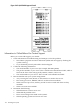
The front control panel LEDs show the system status at a glance. If warning or attention lights
are flashing, check the QuickFind diagnostic panel for further information.
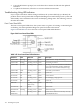
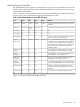
Figure 3-44 and Table 3-21 show the front control panel LED and definitions.
Figure 3-44 Front Control Panel LEDs
Table 3-21 Front Control Panel LED Definitions
DescriptionColorFlash RateStateLED/Button
System normal—OS up and running.GreenSteadyRunningSystem LED
OS booting or at BCH.GreenFlashing at 0.5 HzBootingSystem LED
Warning—System needs attention. Redundancy
lost, component failure pending. (Additional
information can be found in the System Log).
YellowFlashing at 1 HzAttentionSystem LED
Hard fault, system halted.RedFlashing at 2 HzFaultSystem LED
System off.N/AOffOffSystem LED
Power normal.GreenSteadyOnPower LED
Housekeeping voltage present.YellowFlashing at 1 HzOnPower LED
Power off.OffOffOffPower LED
Disk activity.GreenFlashing at rate of
disk activity
Disk LED
Thermal OK.GreenSteadyOKThermal LED
Thermal warning.YellowFlashing at 1 HzWarningThermal LED
System locator LED can be remotely or locally
activated/deactivated.
BlueFlashing at 1 HzLocator
LED/button
122 Installing the System