
Linux on HP ProLiant WS460c Gen8 Workstation Blade with WS460c0 Graphics Expansion Blade Administrator Guide

Using Red Hat Enterprise Linux on the workstation blade 13
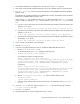
a.
Locate the installer file. For this example, this file is NVIDIA-Linux-x86_64-304.60.run.
b. Run the installer file #sh NVIDIA-Linux-x86_64-304.60.run.
c. Accept the license.
d. If prompted, accept the 32-bit compatibility OpenGL.
e. Accept to update the X configuration file.
f. Complete the setup.
g. Do not reboot.
11. Install HP RGS:
a. Unpack the HP RGS bits.
b. Run the # sh install.sh.installer file.
c. Accept the agreement.
d. Accept the customizations.
e. Do not start X yet, even though the installer instructs you to do so.
12. Change the directory to /etc/X11.
13. Create two copies of the xorg.conf created by the installer files:
a. If you are using a WS460c G6 workstation blade, create the following files:
i. To create the xorg NVIDIA file, run # cp xorg.conf xorg.NVIDIA.
ii. To create the xorg.ATI file, run # cp xorg.conf xorg.ATI.
b. If you are using a WS460c Gen8 workstation blade, create the following files:
i. To create the xorg.NVIDIA file, run # cp xorg.conf xorg.NVIDIA.
ii. To create the xorg.MATROX file, run # cp xorg.conf xorg.MATROX.
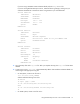
14. Edit the new files:
a. If you are using either a WS460c G6 or Gen8 workstation blade, edit the xorg.NVIDIA file. Be
careful to leave the section on bottom of the xorg file intact which was added during the RGS
installation:
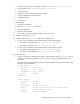
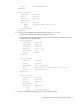
Make the following changes, making sure you customize the BusID line in the device section using
the PCI ID you recorded earlier:
Section "Monitor"
Identifier "Monitor0"
HorizSync 30.0 - 110.0
VertRefresh 50.0 - 150.0
Option "DPMS"
EndSection
Section "Device"
Identifier "Device0"
Driver "nvidia"
VendorName "NVIDIA Corporation"
BusID "PCI:06:00:0" ##PCI ID for your NVIDIA card
Option "ConnectedMonitor" "CRT"
Option "UseEDID" "false"