
HP ProLiant WS460c Gen8 Workstation Blade with WS460c Graphics Expansion Blade Maintenance and Service Guide


Removal and replacement procedures 69
2.
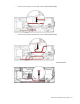
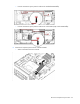
Install the non-standard (tall) 3 rank DIMM baffle, route the cable on the DIMM baffle, and then connect
the cable to the mezzanine option.
3. Install the access panel ("Access panel" on page 28).
Recovering data from the FBWC
If the workstation blade fails, use the following procedure to recover data temporarily stored in the FBWC.
CAUTION: Before starting this procedure, read the information about protecting against
electrostatic discharge ("Preventing electrostatic discharge" on page 25).
1. Set up a recovery workstation blade station using an identical workstation blade model. Do not install
any internal drives or FBWC in this workstation blade. (HP recommends this option.)
2. Power down the failed workstation blade ("Power down the workstation blade" on page 26).
3. Transfer the hard drives from the failed workstation blade to the recovery workstation blade station.
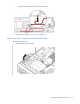
4. Remove the SAS controller (on page 58), NAND flash module (on page 59), and capacitor pack
("Removing the capacitor pack" on page 60) from the failed workstation blade, and install the
controller, NAND flash module, and capacitor pack in the recovery workstation blade.
5. Power up the recovery workstation blade.
If data was saved on the NAND flash module, then a 1792 POST message appears, stating that valid
data was flushed from the cache. This data is now stored on the drives in the recovery workstation
blade.
If the SAS controller fails, use the following procedure to recover data temporarily stored in the FBWC.