
HP ProLiant WS460c Gen8 Workstation Blade with WS460c Graphics Expansion Blade Maintenance and Service Guide

Removal and replacement procedures 37
14.
Power up the workstation blade.
15. Download and install the latest drivers from the HP website (http://www.hp.com) or NVIDIA website
(http://www.nvidia.com/content/drivers/drivers.asp).
For software installation information, see the Microsoft Windows on HP ProLiant WS460c Gen8
Workstation Blade with WS460c Graphics Expansion Blade Administrator Guide.
NVIDIA Quadro K5000 or K6000 graphics card
Required tools for this procedure:
• T-10/T-15 Torx screwdriver (provided inside the server)
• HP Insight Diagnostics software
To remove the graphics card from the graphics expansion blade:
1. Power down the workstation blade (on page 26).
2. Remove the workstation blade.
3. Remove the WS460c Graphics Expansion Blade access panel ("WS460c Graphics Expansion Blade
access panel" on page 29).
4. Remove the WS460c Graphics Expansion Blade PCIe card cage ("WS460c Graphics Expansion
Blade PCIe card cage" on page 32).
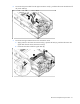
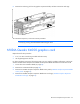
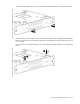
5. Disconnect any power cables from the graphics card, disconnect the retaining screws, and then remove
the graphics card from the card cage.
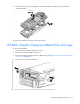
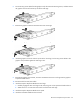
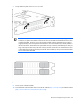
6. Insert the NVIDIA Quadro K5000 or K6000 graphics card into the card cage.
7. Install two screws at the I/O connector panel to secure graphics card to the card cage.
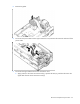
8. Install the card cage to the workstation blade.
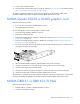
9. Install power cables to the graphics card power connector located at the end with cooling fan.
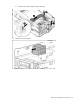
10. Install access panel and reinstall the workstation blade to the enclosure.
The installation is complete. For software installation information, see the Microsoft Windows on HP ProLiant
WS460c Gen8 Workstation Blade with WS460c Graphics Expansion Blade Administrator Guide.
NVIDIA GRID K1 or GRID K2 I/O Plate
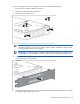
Required tools for this procedure:
• NVIDIA GRID K1 I/O plate or NVIDIA GRID K2 I/O plate
• M2.5x6 mm flat head screws (2)