
HP Hardware Accelerated Graphics for Desktop Virtualization

Technical white paper | HP Hardware Accelerated Graphics for Desktop Virtualization
25
VMware system configuration recommendations
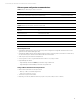
Table 19. Required BIOS setting for Graphics Server Blade
Setting Value
Advanced Options/Option ROM Loading Sequence (G6 Blades Only) Load option card devices first
Power Management Options/HP Power Profile Maximum performance
Video Mode for Setup and Production Setup mode
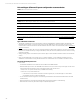
Table 20.
VMware required minimum versions for vSGA and vDGA
Components Software description
ESXi Host 5.1
VMware Horizon View 5.2 for vSGA/5.3 for vDGA
VMware View Agent 5.2 for vSGA/5.3 for vDGA
View Client 5.3 or better
NVIDIA ESXi OS Driver for (vSGA only) Latest for NVIDIA site
NVIDIA Graphics Driver for VM (vDGA only) Latest for NVIDIA site
VMware important notes
• Using VMware vSGA technology does not require any custom configuration on target VM other than minimum View
agent version and standard View agent setup
• Using VMware vDGA technology directly attaches a GPU to a VM for maximum graphics performance. For that reason,
it is required that proper video driver be installed within the virtual machine.
• vSGA only has support for DirectX 9 and OpenGL 2.1
• Some programs look for a recognized GPU and will not start or run properly on vSGA
• High availability and vMotion
– High availability and vMotion is not supported when using in vDGA mode.
– High availability and vMotion is supported when using vSGA mode.
Configure VMware VM and PCoIP for best performance
• Minimum Recommendation for best performance
– Memory—2 GB or more (Static Assignment)
– vCPU—Two virtual cores or more
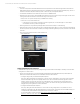
• Turn off Aero support unless needed
• Depending on workload, vDGA end clients may require more power (2 GHz processor or better)