
HP Hardware Accelerated Graphics for Desktop Virtualization



Technical white paper | HP Hardware Accelerated Graphics for Desktop Virtualization
24
Platform specific version and configuration recommendations
The following section covers configuration requirements and recommendations specific to the desktop virtualization platform
installed. These recommendations are the minimum version as recommend by HP for use on HP WS460c Gen8 Graphics
Server Blade. These requirements may not reflect the vendor specific minimum required version recommendations. It does
not cover the full hypervisor configuration. Refer to vender for documentation on operating system and hypervisor setup and
configuration not detailed in this document.
Citrix XenServer Direct Map system configuration recommendations
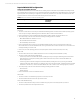
Table 17. Required BIOS setting for XenServer 6 on Graphics Server Blade
Setting Value
Advanced Options/Option ROM Loading Sequence (G6 Blades Only) Load option card devices first
Power Management Options/HP Power Profile
(see section: Setting the Graphics Server Blade to Static High Performance
)
Maximum performance
Video Mode for setup and production use (see section: Configuring Server Blade video mode) Setup mode
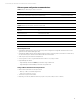
Table 18.
HP recommended minimum Citrix versions for best user performance
Components Software description
Citrix XenServer Citrix XenServer 6.0.2 (6.2 preferred)
Citrix XenDesktop Controller XenDesktop 5.6 FP1 (XD 7 preferred)
Citrix Receiver Citrix Receiver 3.1 (XenDesktop 7 recommended)
Citrix XenDesktop Virtual Desktop Agent XenDesktop 5.6 FP1 VDA (XenDesktop 7 VDA recommended)
XenServer pass-through 6 important notes
• Use the latest available driver for virtual machine client OS from NVIDIA website
• No driver for NVIDIA card is installed on XenServer, the driver is loaded directly on the virtual machine just like a desk
side unit after the GPU is assigned to the VM
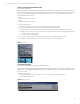
• Because XenServer does not load drivers for the NVIDIA cards, the systems can run in “Setup” video mode to allow
access through iLO remote consoles
• XenServer only allows one GPU to be attached to any virtual machine
• For best performance, run HDX 3D Citrix ICA and HDX 3D Pro on client devices with at least dual core 2 GHz processor.
(Minimum requirement for a single monitor configuration is a single core 2 GHz processor.)
Configure Citrix VM and HDX 3D Pro for best performance
• 2 GB or more of virtual machine memory.
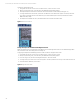
– In order to set more than two cores per socket (allowing for 4 cores or more) on a virtual machine, you must
configure the virtual machine to enable multiple cores per socket. Use the following command from the XenServer
console to enable up to 4 cores per socket and set the virtual machine to use 4 cores at next boot.
xe vm-param-set uuid=<VM UUID> platform:cores-per-socket=4 VCPUs-max=8 VCPUs-
at-startup=4
• Turn off Aero support unless needed. Aero will consume one CPU core.
• Smaller screen resolutions perform better.