
HP Graphics Server Blade XenServer GPU Pass-through Quick Start
Solution Quick Start Guide | HP Graphics Server Blade XenServer GPU Pass-through Quick Start
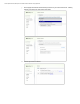
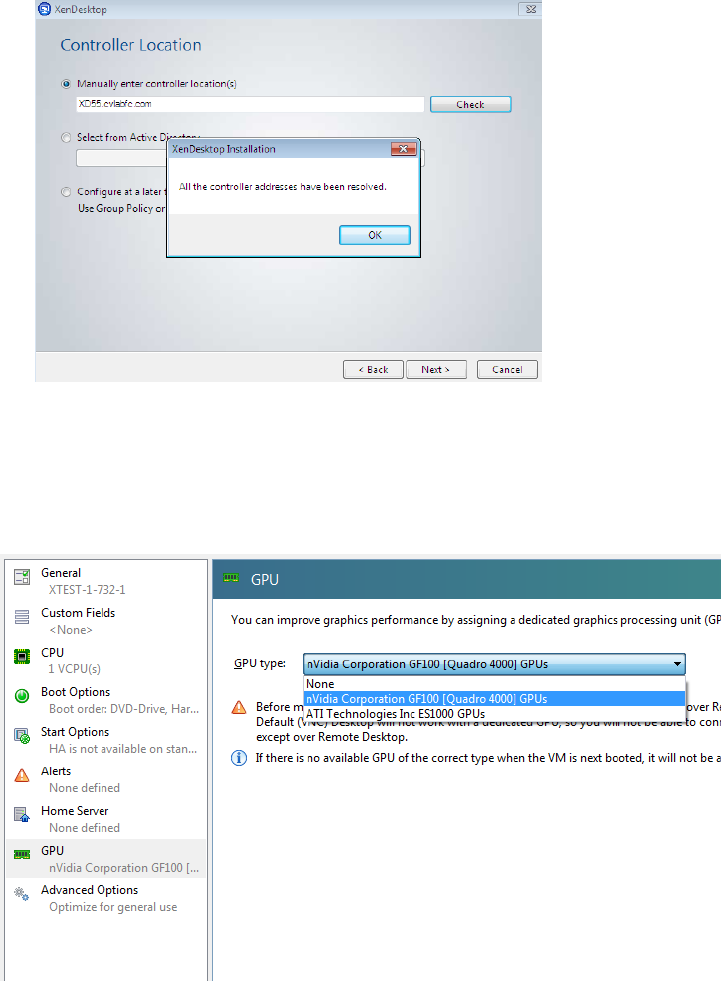
f. Enter address for the desktop controller and validate if needed
g. Finalize any remaining VM configuration you need to do
h. Shut down VM
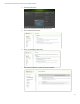
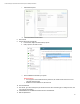
i. From XenCenter, Right click VM and Select properties
j. Under properties, select GPU on menu
k. Select the NVIDIA card installed in your system
IMPORTANT NOTES
Once a graphics card is installed and seen by XenServer, the card will remain in list even if
it is not physically installed anymore
DO NOT choose the embedded card, ATI in this case
l. Start Virtual Machine
m. Once started, go to device manager and you should see an extra video card showing up as a “VGA generic
card”, this is you new Pass-through GPU
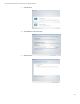
n. Install NVIDIA driver on Virtual Machine. Use latest NVIDIA driver from their web site for the card and client
operating system used
o. Reboot
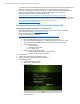
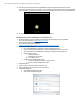
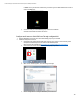
p. After reboot, when the virtual machine and the NVIDIA card initialize the virtual machine default console in
XenCenter will seem to be locked up (See Below). It is not locked up; the video output has been redirected