
HP Graphics Server Blade XenServer GPU Pass-through Quick Start
Technical white paper | HP Hardware Accelerated Graphics for Desktop Virtualization
10
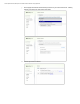
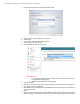
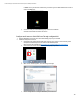
to NVIDIA card. If you need to do maintenance, you need to log in from HDX or RDP remote console or
remove the NVIDIA card
q. You are now ready to create XenDesktop group and connect via HDX 3D.
See Citrix documentation for further instructions
Configure and Connect to Citrix GPU Pass-Through configured VM
1. Configure XenDesktop connection server and create desktop group for your new VMs
2. Install and Configure Citrix receiver
a. On endpoint client, download and install latest version of Citrix receiver if not done already. In this
example we use the Enterprise receiver found on the XenDesktop DVD
Other clients can be download here: http://www.citrix.com/downloads/citrix-receiver.html
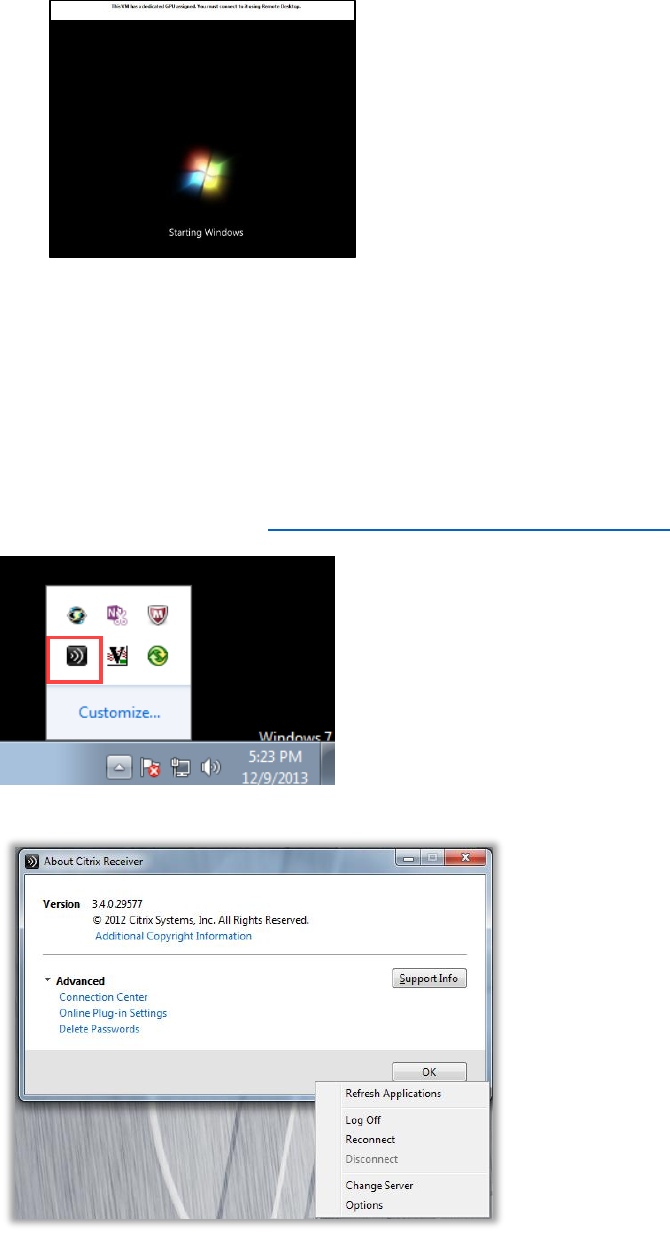
b. Once installed, the receiver should be located in the systray of you client
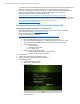
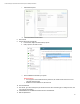
c. Right click Receiver icon and select about
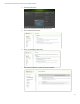
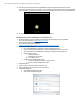
d. When “about” windows appears, click “Online Plug-in Settings”
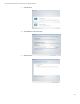
e. Click on “Change Server” to configure XenDesktop connection server