
HP Graphics Server Blade VMware vDGA Quick Start



Solution Quick Start Guide | HP Graphics Server Blade VMware vDGA Quick Start
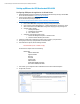
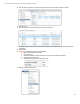
17. At bottom of setting page, click on New Devices Drop down
18. Select “PCI Device”
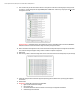
19. Select an available GPU for the VM
IMPORTANT NOTE – Only select the PCI GPU devices and not the Audio Device.
IMPORTANT NOTE – Only one GPU per device is supported.
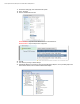
20. Start VM.
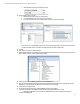
21. Once stated, log in and go to Device Manager.
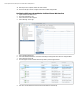
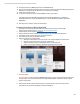
22. Under Display Adapters you should see a new “Standard VGA Graphics Adapter”, that is your vDGA graphics card
without drivers loaded, as well as standard “VMware SVGA Adapter”.