
HP Graphics Server Blade VMware vDGA Quick Start



Technical white paper | HP Hardware Accelerated Graphics for Desktop Virtualization
8
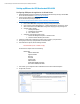
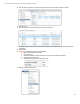
10. Card will show up similar to the following example and on the server it will indicate a reboot is required
11. Reboot the host
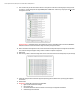
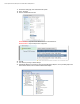
12. After reboot, go back to DirectPath page and confirm cards are shown
13. Create and configure VM to be used with supported operating systems, VMware tools, operating system updates,
and software
14. Shutdown VM
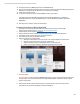
15. IMPORTANT - Edit the VM configuration on all vDGA VM’s.
a. Right Click VM and click “Edit Settings”
b. Click “Options” tab
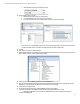
c. Click Advanced/General and then click button on lower right “Configuration Parameters”
d. On Bottom right click “Add Row”
e. Manually add the following rows if they don’t exist
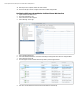
16. Right click on VM and go to setting