
HP Graphics Server Blade VMware vDGA Quick Start



Solution Quick Start Guide | HP Graphics Server Blade VMware vDGA Quick Start
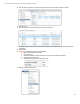
24. After the process is complete, Restart the virtual machine.
25. Connect to VM, skip to section “Configure and Connect to vDGA configured VM”
Configuring vDGA pass-through device via Virtual Center Web Interface
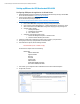
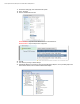
1. Log into Virtual Center Web Access
2. Go to “Host and Clusters” view
3. Click on server host to be configured
4. Click on “Manage” tab on right
5. Click on Hardware/PCI Devices
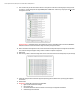
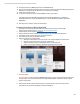
6. In the “DirectPath I/O PCI Devices” screen there most likely is nothing shown as we have not configured GPUs.
7. Click on the pencil icon to edit
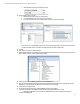
8. Scroll through the screen to find the GPU’s that you wish to pass-through and select
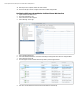
9. Click “Save” on DirectPath screen and then click refresh until the cards show up