
HP Graphics Server Blade VMware vDGA Quick Start



Technical white paper | HP Hardware Accelerated Graphics for Desktop Virtualization
6
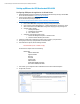
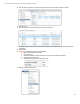
e. Manually add the following rows if they don’t exist
16. Add the graphics device to you VM
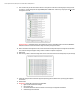
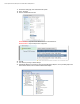
a. Edit VM settings and click “Add” to add new device
b. From Add Hardware screen select “PCI Device” then “Next”
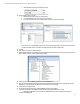
c. From “Choose PCI Device” screen, select available PCI device not used in another VM
IMPORTANT NOTE – If using NVIDIA cards you may see audio card listed as well. Do not pass-through the audio
controller if available on the card. In above example the audio controller is listed as 00.1.
17. Start VM
18. Once stated, log in and go to Device Manager
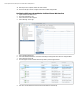
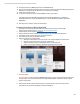
19. Under “Display Adapters” you should see a new “Standard VGA Graphics Adapter”, that is your graphics card without
drivers loaded, as well as standard “VMware SVGA Adapter”
20. Load supported version of NVIDIA graphics driver from NVIDIA web site
21. Once you reboot the VM after installing the driver, the VCenter console will go black as the desktop is going to the
NVIDIA card. To manage the VM, you will need to remove GPU or access remotely
22. Install View Horizon Agent on VM.
23. In some cases it may be necessary to enable NVIDIA API, usually it is not needed.
C:\Program Files\Common Files\VMware\Teradici PCoIP Server\MontereyEnable.exe” -enable
Note: If MontereyEnable.exe is not found, use NvFBCEnable.exe. In the new SDK, MontereyEnable is
replaced with NvFBCEnable.