
HP Graphics Server Blade VMware vDGA Quick Start



Solution Quick Start Guide | HP Graphics Server Blade VMware vDGA Quick Start
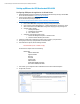
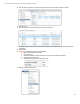
9. Once on edit screen you will see all the PCI devices on the systems. Scroll down to find the graphics cards you wish
to connect to. In this example we have eight NVIDIA Quadro 3000M cards. Select every card you plan to use in pass-
through then click “OK”
IMPORTANT NOTE – On WS460c Graphics Server Blade there will be an embedded graphics card as well (MATROX in
Gen8). Be careful not to select these cards as they are used for primary host console
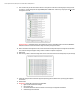
10. Back on the advanced configuration screen, select refresh and the newly selected pass-through device/s should be
seen, and host message will appear stating a reboot is needed to complete configuration
11. Reboot Host
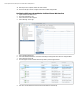
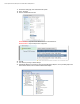
12. After reboot, go back to advanced configuration screen to confirm all cards are successfully set up for pass-through
13. Create and configure VM to be used with supported operating systems, VMware tools, operating system updates,
and software
14. Shutdown VM
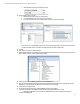
15. IMPORTANT - Edit the VM configuration on all vDGA VM’s.
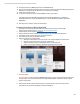
a. Right Click VM and click “Edit Settings”
b. Click “Options” tab
c. Click Advanced/General and then click button on lower right “Configuration Parameters”
d. On Bottom right click “Add Row”