
HP Graphics Server Blade VMware vDGA Quick Start



Solution Quick Start Guide | HP Graphics Server Blade VMware vDGA Quick Start
VMware vDGA Considerations
Using VMware vDGA technology directly attaches a GPU to a VM for maximum graphics performance. For that
reason, it is required that proper video driver be installed within the virtual machine
High availability and vMotion is not supported when host is in vDGA mode
V10 version hardware on a VM can no longer be managed via Virtual Center standard console, must use web access
to manage
If using VMWare vSGA and vDGA technologies, if you have a GPU configured for vDGA it cannot be used for vSGA
Tips and Tricks you need to know - Tech Nuggets and Known issues
When configuring VM with vDGA, only select the PCI GPU device itself and not the Audio Device on GPU’s that
support it
There is a known issue where after configuring VM for vDGA, when you try to start the VM it will shut down after a
few seconds
o To resolve, make sure the following is included as a VM configured parameter
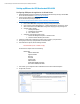
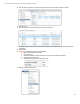
Right Click VM and click “Edit Settings”
Click “Options” tab.
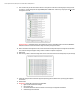
Click Advanced/General and then click button on lower right “Configuration Parameters”
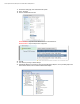
On Bottom right click “Add Row”
Manually add the following rows if they don’t exist
NOTE – Only the pcihole.start parameter is needed for this specific issues, however as seen in
the configuration section later, we recommend both
The Graphics Server Blade support multiple video modes, when using VMware, only “SETUP” mode needs to be used
o If unfamiliar with video modes, please read Appendix A before continuing
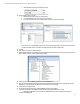
In order to activate the NVIDIA display adapter in vDGA on a newly configured VM, you must connect via PCoIP, and
at full screen from the endpoint (at native resolution), or the virtual machine will use the SVGA 3D display adapter.
o To test, attempt to open the NVIDIA control panel. If it fails the NVIDIA adapter is not active.
vDGA will not work through the vSphere console session, you will only see a blank screen in this mode.
vDGA multi-monitor support is dynamic, it will try to automatically detect your endpoint client monitor
configuration and display on all. All monitors must be the same and GPU must support multi-monitor.
o Although not fully supported, quad display will only work on GPU’s that support it, for example NVIDIA
K5000 and K6000
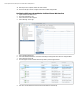
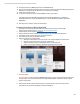
o If you try to connect from an endpoint configuration that is not supported and vDGA cannot dynamically
configure session, you may get a single display output across all monitor as seen in this example
To Resolve this, go back to a single monitor full screen or log out and then connect with a
supported configuration