
HP Graphics Server Blade VMware vDGA Quick Start



Technical white paper | HP Hardware Accelerated Graphics for Desktop Virtualization
10
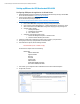
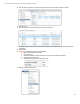
23. Load supported version of NVIDIA graphics driver from NVIDIA web site.
24. Once you reboot the VM after installing the driver, the vCenter console may go black as the desktop is going to the
NVIDIA card. To manage the VM, you will need to remove GPU or access remotely.
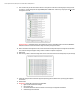
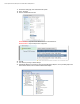
25. Install View Horizon Agent on VM.
26. In some cases it may be necessary to enable NVIDIA API, usually it is not needed.
C:\Program Files\Common Files\VMware\Teradici PCoIP Server\MontereyEnable.exe” -enableNote: If
MontereyEnable.exe is not found, use NvFBCEnable.exe. In the new SDK, MontereyEnable is replaced with
NvFBCEnable.
27. After the process is complete, restart the virtual machine.
Configure and Connect to vDGA configured VM
1. On endpoint client, download and install latest version of Horizon View client if not done already.
Latest clients can be download here: https://www.vmware.com/go/viewclients
2. Install/Configure Horizon View Server if not done.
3. Configure Horizon View for new desktop with vDGA configured VM’s. (see VMware Documentation)
4. From endpoint client, connect to View server via Horizon View client
5. A list of VM’s you have access to should be presented.
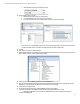
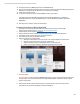
6. Right click on desktop icon to display mode
a. All Monitors – Will attempt to connect full screen on all configured displays on endpoint client
b. Fullscreen – Full Screen on primary monitor on endpoint client
c. Window Large/Small – Opens in a single display monitor in windowed mode
d. Custom – You can use to configure a custom size single display monitor window
7. Connect to desktop
IMPORTANT NOTE – In order to activate the NVIDIA display adapter, you must connect via PCoIP, and at full screen
from the endpoint or the virtual machine will use the SVGA 3D display adapter. vDGA will not work through the
vSphere console session.
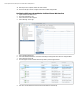
8. After the virtual machine has rebooted and you have connected via PCoIP in full screen, check to ensure
that the GPU is active by viewing the display information in DXDiag.exe.