
HP Graphics Server Blade RedHat Enterprise Linux Quick Start

4
X Configuration Option 2 - Connected CRT display method – Single Screen
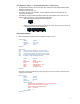
A single screen using the “ConnectedMonitor” “CRT” to fake the driver into thinking there is a CRT
attached.
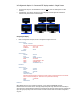
In CRT Method – the “taskbar” with spans across all displays, and when application windows are
maximized they will maximize across all displays.
Configuring CRT Display
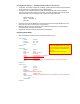
Below is configuration example, red text is configuration changes to focus on.
Section "Monitor"
Identifier "Monitor0“
# Do not remove the HorizSync or VertRefresh.
HorizSync 30.0 - 110.0
VertRefresh 50.0 - 150.0
Option "DPMS“
EndSection
Section "Device"
Identifier "Device0"
Driver "nvidia"
VendorName "NVIDIA Corporation"
BusID "PCI:19:0:0"
Option "ConnectedMonitor" "CRT"
Option "UseEDID" "false"
Option "AllowSHMPixmaps" "1"
EndSection
Section "Screen"
Identifier "Screen0"
Device "Device0"
Monitor "Monitor0"
DefaultDepth 24
SubSection "Display“
### Put the largest resolution you support at the front of this list, and that will also become the default.
### For maximum flexibility, use "1920x1440" and rely on Resolution Matching.
Modes "1920x1440"
Depth 24
EndSubSection
EndSection
With a Modes line in the Screen, SubSection “Display”, you are setting the MAXIMUM resolution.
Note this will be the resolution seen for the login prompt initially. After login, RGS will resize the desktop to
match the receiver if Match Receiver Resolution is checked. Because the resize cannot take place until after the
login, the login prompt may be off screen if receiver resolution is smaller than max resolution configured in
xorg.conf.