
HP ProLiant WS460c G6 Workstation Blade with WS460c Graphics Expansion Blade Maintenance and Service Guide


Removal and replacement procedures 76
o
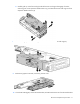
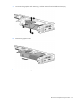
If you are installing the Quadro 4000, install the graphics card (1), insert the slot cover (2) below
the graphics card (3), and then connect any power cables to the graphics card.
o If you are installing either the Quadro 5000 or Quadro 6000, insert the graphics card and connect
any power cables to the graphics card.
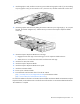
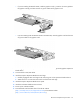
10. Install the graphics card retainer, and then install the entire PCIe card cage into the graphics expansion
blade chassis.
11. Connect the four PCIe/SAS cables.
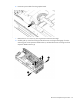
12. Install the Graphics Expansion Blade PCIe card cage.
a. Carefully engage the PCIe card cage to the anchoring pins on the expansion blade enclosure.
b. Attach the two T-15 screws that secure the front of the PCIe card cage.
13. Install the Graphics Expansion Blade access panel.
14. Install the workstation blade into the enclosure.
15. Power up the workstation blade.
16. Download and install the latest drivers from the HP website
(http://www8.hp.com/us/en/support-drivers.html) or the NVIDIA website
(http://www.nvidia.com/content/drivers/drivers.asp).