
Open Source Object Storage for Unstructured Data: Ceph on HP ProLiant SL4540 Gen8 Servers



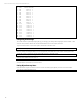
Table Of Contents
- Executive summary
- Introduction
- Overview
- Solution components
- Workload testing
- Configuration guidance
- Bill of materials
- Summary
- Appendix A: Sample Reference Ceph Configuration File
- Appendix B: Sample Reference Pool Configuration
- Appendix C: Syntactical Conventions for command samples
- Appendix D: Server Preparation
- Appendix E: Cluster Installation
- Naming Conventions
- Ceph Deploy Setup
- Ceph Node Setup
- Create a Cluster
- Add Object Gateways
- Apache/FastCGI W/100-Continue
- Configure Apache/FastCGI
- Enable SSL
- Install Ceph Object Gateway
- Add gateway configuration to Ceph
- Redeploy Ceph Configuration
- Create Data Directory
- Create Gateway Configuration
- Enable the Configuration
- Add Ceph Object Gateway Script
- Generate Keyring and Key for the Gateway
- Restart Services and Start the Gateway
- Create a Gateway User
- Appendix F: Newer Ceph Features
- Appendix G: Helpful Commands
- Appendix H: Workload Tool Detail
- Glossary
- For more information

Reference Architecture | Product, solution, or service
Appendix G: Helpful Commands
These are commands for administering the Ceph cluster that were useful during testing.
Removing configured objects
For a POC/test configuration, there may be reasons to tear down the cluster to recreate, change OSD configuration, etc. An
example is swapping out spinning media for SSDs.
Rebuilding Cluster
If resetting a running cluster—this can be a lot faster than rebuilding if the cluster data isn’t important—the official
instructions were generally not sufficient to clean up hosts. Instead, do this under the cluster staging directory.
1. ‘ceph-deploy purge <all cluster hosts>’
2. ‘ceph-deploy purgedata <all cluster hosts>’
3. ‘ceph-deploy forgetkeys’
4. You may also need to run ‘sudo apt-get autoremove’ on the cluster hosts if you’re changing releases to clean up package
dependencies.
If the state still appears to be stuck, the nuclear option is going to each node and manually removing /var/lib/ceph and
/var/run/ceph. OSDs hosts may require unmounting OSD data partitions before removing /var/lib. Make sure all ceph
packages are uninstalled and then reboot the hosts.
The unmount syntax (operated on the OSD hosts):
sudo umount /dev/sd{<start letter>..<end letter>}1
Removing OSDs
This simplifies the flow of the official Ceph instructions somewhat. With a number of OSDs to remove these can be put into
small scripts to avoid errors; automating the wait on cluster health would be a bit more involved. Just deleting OSDs one
after another can result in data loss if not careful. The slow but safe approach is recommended to avoid risk of rebuilding a
pool/cluster.
ceph osd out <OSD #>
ssh <remote host> sudo stop ceph-osd id=<OSD #>
Wait here with ‘ceph –w’ until the cluster is healthy.
ceph osd crush remove osd.<OSD #>
ceph auth del osd.<OSD #>
ceph osd rm <OSD #>
If removing more OSDs, again wait with ‘ceph –w’ until the cluster is healthy.
Removing logical drives
If reducing volume count for some reason (changing out drives in use, reducing count for performance evaluation), here’s
sample CLI syntax. The logical drive numbers are 1 based.
for lnum in {<start #>..<end #>}; do sudo /usr/sbin/hpssacli controller slot=1 logicaldrive ${lnum} delete; done
Checking Cluster State
The default is to require root permissions to read ceph configuration. For simplicity, open everything up on admin node(s)
while debugging:
sudo chmod +r /etc/ceph/*
The command ‘ceph –s’ is useful for validating cluster health. Use ‘ceph –w ‘to follow runtime task status for the cluster.
Using ‘ceph df’—or ‘rados df’ for a bit more information—to see cluster usage.
If an OSD is down, ‘ceph OSD tree’ is a good state check of the cluster OSDs. Here’s a subset of the command output format
grabbed from the sample reference configuration; nodes that are not healthy will not be ‘up’.
cloudplay@hp-cephmon02:~$ ceph osd tree | head -n 23
# id weight type name up/down reweight
49