
Open Source Object Storage for Unstructured Data: Ceph on HP ProLiant SL4540 Gen8 Servers


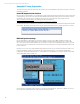
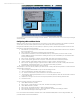

Table Of Contents
- Executive summary
- Introduction
- Overview
- Solution components
- Workload testing
- Configuration guidance
- Bill of materials
- Summary
- Appendix A: Sample Reference Ceph Configuration File
- Appendix B: Sample Reference Pool Configuration
- Appendix C: Syntactical Conventions for command samples
- Appendix D: Server Preparation
- Appendix E: Cluster Installation
- Naming Conventions
- Ceph Deploy Setup
- Ceph Node Setup
- Create a Cluster
- Add Object Gateways
- Apache/FastCGI W/100-Continue
- Configure Apache/FastCGI
- Enable SSL
- Install Ceph Object Gateway
- Add gateway configuration to Ceph
- Redeploy Ceph Configuration
- Create Data Directory
- Create Gateway Configuration
- Enable the Configuration
- Add Ceph Object Gateway Script
- Generate Keyring and Key for the Gateway
- Restart Services and Start the Gateway
- Create a Gateway User
- Appendix F: Newer Ceph Features
- Appendix G: Helpful Commands
- Appendix H: Workload Tool Detail
- Glossary
- For more information
Reference Architecture| Ceph on HP ProLiant SL4540 Gen8 Servers
Appendix D: Server Preparation
This section describes a few steps that need to be performed prior to OS installation as well as steps required to customize
the OS after installation.
Install HP Support Pack for ProLiant
HP Service Pack for ProLiant (SPP) is a comprehensive systems software and firmware update solution, which is delivered as
a single ISO image. This solution uses HP Smart Update Manager (HP SUM) as the deployment tool and is tested on all HP
ProLiant Gen8, G7, and earlier servers as defined in the Service Pack for ProLiant Server Support Guide found at
www.hp.com/go/spp/documentation. The ISO image can be downloaded from:
http://h17007.www1.hp.com/us/en/enterprise/servers/products/service_pack/spp/
For the HP SL4540 servers in this Reference Architecture, we used iLO Virtual Media to mount the ISO image and booted the
server from it. We chose to use the Automatic Firmware Update option which requires no further interaction to complete.
BIOS Configuration Settings
Prior to OS installation on the SL4540, you will need to change or verify a couple of BIOS configuration settings. The
Mellanox NIC on the SL4540 10GbE IO Module requires SR-IOV to be enabled when using firmware v2.11.1026 or later.
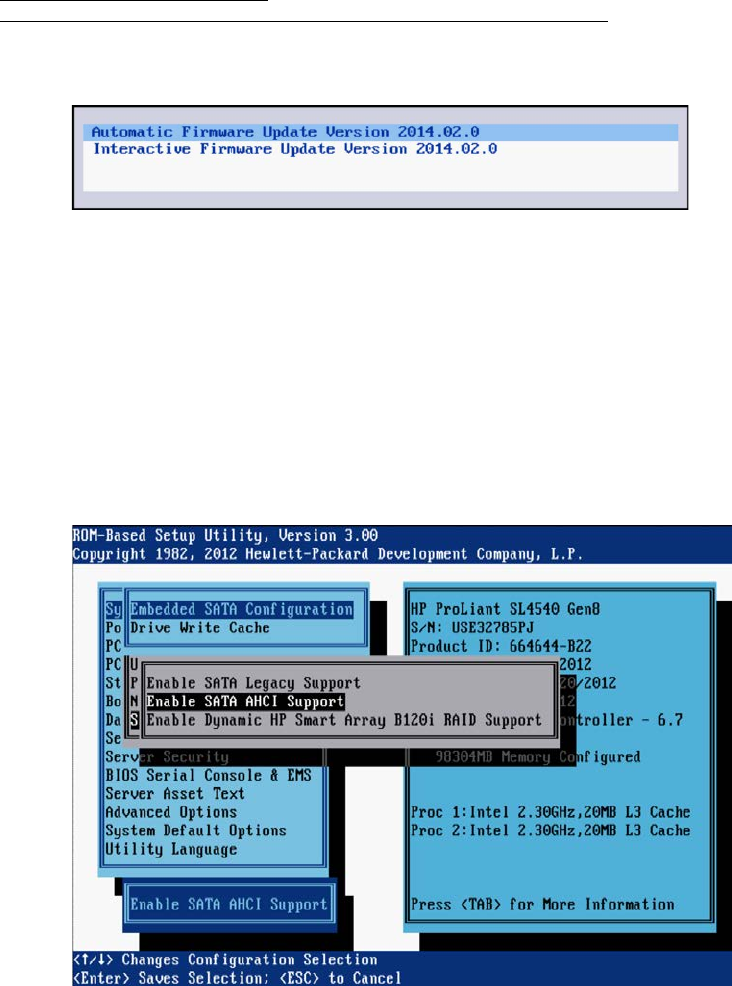
Also, current versions of the Ubuntu distribution do not include in-box support for the HP Dynamic Smart Array, so you will
need to set the controller in AHCI mode so that the system drives (hot plug drives on front of the HP SL4540) may be used
for the boot device.
During server boot, press ‘F9’ to enter the BIOS configuration menu when you see “F9 Setup” at the bottom of the screen.
Select “System Options” and then scroll down and select “SATA Controller Options”. Then Select “Embedded SATA
Configuration” and “Enable SATA AHCI Support”. Assuming this is a fresh installation, you can ignore the warning message
about enabling RAID resulting in data loss.
Press escape twice to get back to the main menu, scroll down to “Advanced Options”, then down to “SR-IOV”. If you don’t
see a dark blue box indicating “Enabled”, then press enter and select “Enabled”.
36