
HP ProLiant SL170z G6 Server Installation Sheet





IMPORTANT: Be sure the processor remains inside the
processor installation tool.
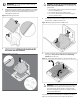
2. If the processor has separated from the installation tool, carefully
re-insert the processor in the tool. Handle the processor by the
edges only, and do not touch the bottom of the processor,
especially the contact area.
Figure 8 Reinserting a processor
3. Align the processor installation tool with the socket, and then
install the processor. THE PINS ON THE SYSTEM BOARD ARE
VERY FRAGILE AND EASILY DAMAGED.
Figure 9 Installing a processor
CAUTION: THE PINS ON THE SYSTEM BOARD ARE VERY
FRAGILE AND EASILY DAMAGED. To avoid damage to the
system board:
• Never install or remove a processor without using the
processor installation tool.
• Do not touch the processor socket contacts.
• Do not tilt or slide the processor when lowering the
processor into the socket.
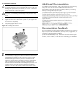
4. Press the tabs on the processor installation tool to separate it from
the processor, and then remove the tool.
Figure 10 Removing the processor installation tool
5. Close the processor socket retaining bracket and the processor
locking lever. The processor socket cover is automatically
ejected. Remove the cover.
Figure 11 Closing the bracket and lever, and removing the cover
CAUTION: Be sure to close the processor socket retaining
bracket before closing the processor locking lever. The
lever should close without resistance. Forcing the lever
closed can damage the processor and socket, requiring
system board replacement.
For processor removal, reverse the above installation procedures
being sure to use the processor tool to remove the processor.