
HP ProLiant SL170s G6 Server Software Configuration Guide
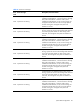
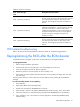
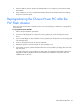


Table Of Contents
- HP ProLiant SL170s G6 ServerSoftware Configuration Guide
- Notices
- Contents
- System BIOS configuration
- OS installation
- Server management
- Index

System BIOS configuration 41
Table 23 POST Error Messages
Error
code
Error message Description/corrective action
664h System Fan 7b Missing
If system fan7b is not installed or failed, when one fan
missing, system will announce this message and other fans
will run at high speed. When two fans missing at the
same time, this will appear and system will shutdown in
minutes.
665h System Fan 8a Missing
If system fan8a is not installed or failed, when the system
installed non-redundant fan, it will announce this message
and system will shutdown in minutes. When system
installed with redundant fan, if only one fan missing, this
will appear and the other fans will run at high speed. If
two fans missing, this will appear and system will
shutdown in minutes.
666h System Fan 8b Missing
If system fan8b is not installed or failed, when one fan
missing, system will announce this message and other fans
will run at high speed. When two fans missing at the
same time, this will appear and system will shutdown in
minutes.
POST-related troubleshooting
Refer to HP ProLiant SL170s Maintenance and Service Guide for troubleshooting guidelines.
Reprogramming the BIOS after the ROM disaster
If the BIOS becomes corrupted, use the crisis recovery USB key to reprogram the BIOS.
To reprogram the BIOS:
1. Perform the pre-installation procedures.
2. Connect a HP crisis recovery USB key to one of the USB ports on the server.
3. Power on the system and wait for about 10 Minutes.
4. Reboot the system to check the system can boot normally or not.
5. If the system can't boot, please rebuild the HP crisis recovery USB key or floppy disk, then redo
step 2 to step 5.
Following is the solution to create a HP crisis recovery USB key, firstly, please get the ROMPAQ
package
To create a bootable disaster recovery USB key:
1. Plug a USB key.
2. Open system BIOS release package folder.
3. Double click the batch file “ROMPAQ.bat” to execute.
4. When prompt a window “HP USB Key ROMPAQ Setup Creation Utility”, enter “start” button.
5. Follow the instructions to complete making a bootable DOS ROMPAQ disk on the USB key.
6. Upon completion, click “close” button to exit the application “HP USB Key ROMPAQ Setup
Creation Utility”.