HP ProLiant SL160z G6 Server Software Configuration Guide Part number 571294-002 Second edition April 2010
Legal notices © Copyright 2010 Hewlett-Packard Development Company, L.P. The information contained herein is subject to change without notice. The only warranties for HP products and services are set forth in the express warranty statements accompanying such products and services. Nothing herein should be construed as constituting an additional warranty. HP shall not be liable for technical or editorial errors or omissions contained herein. Microsoft, Windows, and Windows NT are U.S.
Contents System BIOS configuration ...................................................................................................................... 4 System BIOS overview .............................................................................................................................. 4 BIOS software ......................................................................................................................................... 4 BIOS Setup Utility ................................
System BIOS configuration This chapter describes the basic functions of the BIOS. System BIOS overview A Basic Input/Output System, or BIOS, is a set of programs permanently stored in an EEPROM chip (U55) located on the system board. These programs serve as an interface between the server’s hardware components and its operating system. This ProLiant server features a ROM BIOS-based diagnostic tool that monitors system activity and performs constant hardware testing to ensure proper system operation.
NOTE: If you repeatedly receive “Run Setup” messages, the battery located on the system board (B1) may be defective. In this case, the system cannot retain configuration values in CMOS. Ask a qualified technician for assistance. The Setup Utility loads the configuration values in a battery-backed nonvolatile memory called CMOS RAM. This memory area is not part of the system RAM, which allows configuration data to be retained when power is turned off. The values take effect when the system is booted.
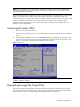
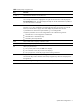
Table 1 Setup Utility navigation keys Key Function ← and → Move between selections on the menu bar. ↑ and ↓ Move the cursor to the field you want. The currently selected field is highlighted. The right side of each menu screen displays the Item Specific Help panel. This panel displays the help text for the selected field. It updates as you move the cursor to each field. <+>, <–> Select a value for the currently selected field if it is user-configurable.
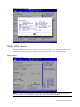
Figure 2 General Help Screen Setup Utility menus The Setup Utility menu bar displays the five primary menu selections. For detailed information and screenshots of these Setup menus and their related submenus, refer to the following sections. Main Menu Figure 3 Main Menu NOTE: The time is in 24-hour format. For example, 5:30 A.M. appears as 05:30:00, and 5:30, P.M. as 17:30:00. If you unplug the battery, setup time values will be 00:00:00.
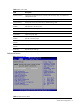
Table 2 Main menu fields Field Description System Overview Displays the system ROM Version, the date when the Setup utility was created and identification number. Processor Displays the CPU version, speed and count. System Memory Displays the amount of system memory detected during POST. System Serial Number Displays the server serial number. The serial number is indicated on the serial number label pull tab on the front panel. Asset Tag Enter the server asset tag.
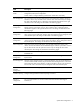
Field Description Power Efficiency Mode Efficiency/Performance: Impact groups as CPU Configuration/CPU bridge Configuration/PCI Express Configuration. Custom: Allow to configure Efficiency/Performance related items individually. CPU Configuration You can use this screen to select options for the CPU Configuration Settings. Use the up and down keys to select an item. Use the and keys to change the value of the selected option.
CPU Configuration submenu Figure 5 CPU Configuration submenu NOTE: The CPU Configuration setup screen varies depending on the installed processor. Table 4 CPU Configuration submenu fields Field Description Options C1E Support This should be enabled in order to enable or disable the “Enhanced Halt State”. The Setting default value is Enabled. Enabled Disables the item. Disables support for adjacent cache line prefetch debug function. Disabled Enabled Hardware Prefetcher feature.
Table 4 CPU Configuration submenu fields Field Description Options Intel(R) HT Technology When disabled only one thread per enabled core is enabled. Enabled Active Processor Cores Enable all cores in each processor package. All Enable one core in each processor package. 1 Enable two cores in each processor package. 2 A20M Legacy OSes and APs may need A20M enabled. Disabled Intel(R) SpeedStep(tm) tech This setting is available if the processor supports SpeedStep.
Table 5 CPU Bridge Configuration submenu fields Field QPI L0s and L1 Memory Frequency Advanced Memory Protection Node Interleaving Description Options Transfer the links to 6.400GT 6.400GT Disable L0s and L1. Disabled Enable L0s and L1. Enabled Forces a DDR3 frequency slower than the common tCK detected via SPD. Auto Force DDR-800 Force DDR-800 Force DDR-1066 Force DDR-1066 Force DDR-1333 Force DDR-1333 Independent: independent channel.
SATA Configuration submenu Figure 7 SATA Configuration submenu Table 6 SATA Configuration submenu fields Field Description Options SATA#1 Controller Disable SATA#1 controller Disabled Configure SATA#1 controller to compatible mode Compatible Configure SATA#1 controller to RAID mode RAID Configure SATA#1 controller to AHCI mode AHCI Mode SATA Port1 While during POST, BIOS auto detects the presence of SATA Device. This displays the status of auto detection of SATA devices.
Table 6 SATA Configuration submenu fields Field Description Options Drive Write Cache feature on all dumb SATA drives to be enabled System BIOS or SATA option ROM during POST. This improves performance, but at a risk of data loss on a power failure. Enabled Super IO Configuration submenu Figure 8 Super IO Configuration submenu Table 7 IO Device Configuration submenu fields Option Description Disabled Set this value to prevent the serial port from accessing any system resources.
Table 7 IO Device Configuration submenu fields Option Description Level trigger Controls IRQ trigger for serial port. Use to resolve issues that may occur with serial port support. VMware requires Edge to provide optimum serial port performance. Note: Edge trigger Only applies with serial port at IRQ4. USB Configuration submenu Figure 9 USB Configuration submenu NOTE: When you install USB storage, USB Mass Device Configuration items are displayed.
Table 8 USB Configuration submenu fields Field Description Options Configure the USB 2.0 controller in FullSpeed(12Mbps). FullSpeed BIOS EHCI HandOff This is a workaround for OSes without EHCI hand-off support. The EHCI Enabled ownership change should claim by EHCI driver. Disabled Hotplug USB FDD Support A dummy FDD device is created that will be associated with the hotplugged FDD later. Auto option creates this dummy device only if there is no FDD present.
Table 9 PCI Configuration submenu fields Field Embeded NIC Port 2 Control Embedded NIC Port 2 PXE Description Options The option specifies the embedded NIC Port1 PXE, Allows the user to disable of any embedded NIC Ports. Should be one SETUP option for each embedded NIC Port. Disabled The option specifies the embedded NIC2. Allows the user to enable of Enabled embedded NIC2 Port. The option specifies the embedded NIC2. Allows the user to disable of embedded NIC2 Port.
Table 10 PCI Express Configuration submenu fields Field Description Options Active State PowerManagement Enable PCI Express L0s and L1 link power states. Enabled Disable PCI Express L0s and L1 link power states. Disabled Gen2: For best possible performance. Gen 2 Gen1: All PCI-E devices will only run in Gen 1 mode.
Table 11 IPMI Configuration submenu fields Field Description Watchdog Configuration Select Watchdog Configuration in the left frame of the screen and press to go to the submenu for that item. That will display POST Watchdog Timer Action, BMC Watch Dog Time Out; you can change the default value. Serial Port Configuration Select Serial Port Configuration in the left frame of the screen to go to the submenu for that item. Then you can press Enter to enter its submenu.
Table 12 Set LAN Configuration submenu fields Field Description Options To disable BMC HTTP Service.
Table 13 SEL Configuration submenu fields Field Description View BMC System Event Log The option specifies BMC system event log. Select this option and press to access the submenu to view the contents of System Event log. Clear BMC System Event Log The option specifies clear system event log. If the BMC Event log is full, you can choose this item to clear out the BMC Event log. If this option is selected, a confirmation prompt will appear before the log is cleared.
Figure 17 Watchdog Configuration submenu Table 15 Watchdog Configuration submenu fields Field Description Options IPMI Watchdog Timer Set this value to allow BMC to reset if the operating system crashes or hangs. Reset System Disabled the item will not allow to crashes or hangs if OS crashes or hangs. This is the default setting. Disabled Set this value to allow BMC to power down if the operating system crashes or hangs.
Figure 18 Serial Port Configuration submenu Table 16 Serial Port Configuration submenu fields Field Description Options Serial Port Assignment This setting will assign the serial port connector to the system. The setting default value is System. System This setting will assign the serial port connector to the BMC (Baseboard BMC management controller). Serial Port Connection Mode Serial port connection mode is Direct. The setting default value is Direct. Direct Serial port connection mode is Modem.
BIOS Serial Console Configuration submenu Figure 19 BIOS Serial Console Configuration submenu (1) Figure 20 BIOS Serial Console Configuration submenu (2) Table 17 BIOS Serial Console Configuration submenu fields Field Description Options BIOS Serial Console When Enabled, can configure related settings Enabled Disable BIOS Serial Console type.
Trusted Computing submenu Figure 21 Trusted Computing submenu Table 18 Trusted Computer Configuration submenu fields Field Description Options TCG/TPM SUPPORT Enable/Disable TPM TCG (TPM 1.1/1.
Boot Menu Figure 22 Boot Menu Table 18 Boot menu fields Field Description Boot Settings Configuration Sets which options to run during system boot up. Press Enter to access the related submenu. For details on the submenu options, see the “Hard Disk Drives configuration submenu” section. Standard Boot Order Specifies the Boot Device Priority sequence. Hard Disk Drives Specifies the boot Device Priority sequence from available Hard Drives.
Figure 23 Standard Boot Order submenu NOTE: When you select a boot category from the boot menu, a list of devices in that category appears. Hard Disk Drives configuration submenu Figure 24 Hard Disk Drives Configuration submenu Security menu The Security menu allows users to set an administrator password. When entered, this password allows the user to access and change all settings in the Setup Utility.
Figure 25 Security menu System BIOS configuration 28
To set an administrator password: 1. Indicates whether a supervisor password has been set, if the password has been installed, installed displays, if not, not installed displays. 2. In the Security menu screen, in the Change Admin Password field, press Enter. The Enter New Password window displays. Figure 26 Enter New Password 3. Type a new password in the Enter New Password box. The password may consist of up to six alphanumeric characters (A-Z, a-z, 0-9), then press Enter.
Figure 27 Confirm New Password 4. Type the same password in the Confirm New Password box to verify the first entry, and then press Enter. The Password Installed OK is displayed. Press OK to finish. Figure 28 Password installed 5. Press F10 to save the password and close the Setup Utility. Setup automatically changes the administrator Password.
To change the Admin Password: 1. In the Security menu screen, in the Change Admin Password field, press Enter. The Enter New Password displays. Type a new password in the Enter New Password box. 2. Type the same password in the Confirm New Password box to verify the first entry, then press Enter. The Password Installed OK is displayed. Press Enter to finish. To check the administrator password: 1. In the Security menu screen, select Password Check, and then press Enter. 2.
Exit menu The Exit menu displays several options on how to quit the Setup Utility. Select any of the exit options then press Enter. Figure 30 Exit menu Table 20 Exit menu fields Option Description Save Changes and Exit Save the changes made and exit the Setup Utility. Discard Changes and Exit Discard the changes and exit the setup utility. Discard Changes Discard the changes in the utility. Restore Default Setting Restore the default settings for all BIOS setup fields.
1. Reboot the server in a normal manner. 2. During POST, press F10 to access the Setup Utility. 3. Press F9 to load the default values. 4. Press F10 to save the changes and close the Setup Utility. Clearing CMOS You may need to clear the Setup configuration values (CMOS) if the configuration has been corrupted, or if incorrect settings made in the Setup Utility have caused error messages to be unreadable. Clearing the CMOS data removes the administrator password.
In some cases an error message may include recommendations for troubleshooting or require that you press the Enter key to display recommendations. Follow the instructions on the screen. It is recommended that you correct the error before proceeding, even if the server appears to boot successfully. If your system displays one of the messages marked below with an asterisk (*), write down the code and message and contact your HP Customer Support provider.
Table 21 POST error message 601 Error: BMC Not Responding 041 Display memory test failed 040 Refresh timer test failed 048 Password check failed 00B CMOS Memory Size Wrong 010 Floppy Controller Failure 00C RAM R/W test failed 003 CMOS Battery Low 701 Insufficient Runtime space for MPS data. System may operate in PIC or Non-MPS mode. 702 No enough APIC ID in range 0-0Fh can be assigned to IO APICs.
OS installation Supported OS Table 22 Supported network operating systems (NOS) NOS Version On-line information site Microsoft Windows • Microsoft Windows 2003 Server, Standard Microsoft World Wide Web: • Microsoft Windows 2003 Server, Enterprise http://www.microsoft.
Table 22 Supported network operating systems (NOS) NOS Version On-line information site Virtualization • • • • • http://www.citrix.com VMWare ESX 4.x RedHat Virtualization (XEN/KVM) SLES Xen Citrix XenServer Microsoft Windows Hyper-V, R2 OS pre-installation procedure Perform the two pre-OS installation steps in this section before installing the OS of your choice. 1. Configure the hardware aspect of the server. 2. Update the server BIOS.
c. 2. Choose OS to install HP Insight Diagnostics Tool Basic Test a. Put the tool CD into CD/DVD ROM, boot from CD/DVD ROM. b. Run the tool following the instruction on screen.
Server management Pre- and post-installation procedures Pre-installation procedures WARNING: Failure to properly turn off the server before you open the server or before you start removing or installing hardware components may cause serious damage as well as bodily harm. WARNING: To reduce the risk of personal injury from hot surfaces, allow the chassis and any installed hardware components to cool before touching them.
To configure the BMC through the Setup Utility: 1. In the Serial Port Configuration submenu under the IPMI Configuration submenu, set the Serial port Assignment field to System or BMC. See the “Serial Port Configuration submenu fields” section for more information. 2. In the LAN Configuration Settings submenu under the IPMI configuration submenu, set the IP address, default gateway, and IP subnet mask for the BMC. You can set the addresses manually or use DHCP to set the addresses automatically. 3.
1. In the Serial Port Configuration submenu under the IPMI Configuration submenu, set the Serial port Assignment field to System or BMC. See the “Serial Port Configuration submenu fields” section for more information. 2. In the Console Redirection submenu, set Remote Access to Enable. See the “Console Redirection submenu fields” section for more information. 3. Press F10 to Save and Exit.
Index A I administrator password, 27 IDE, 14 administrator password changing, 31 IP subnet mask, 40 administrator password checking, 31 IPMI Configuration submenu, 18 Advanced menu, 8 IPMI LAN interface, 40 asset tag, 8 L B LAN Controller, 40 Baseboard management controller, 23 M Basic Input/Output System, 4 BIOS EHCI Hand-Off, 16 BIOS overview, 4 BIOS Serial Console Configuration submenu, 24 BIOS Setup Utility, 4 Main Menu, 7 memory, 8 N New Password box, 29 BIOS update, 37 O BMC Watch
Standard Boot Order submenu, 26 U Super IO Configuration submenu, 14 USB Configuration submenu, 15 system configuration changing, 4 V System Date, 8 system defaults, 32 System Time, 8 system time and date setting, 4 View BMC System Event Log, 21 W Watchdog Configuration, 19 T Trusted Computing submenu, 25 Index 43