
HP ProLiant SL160z G6 Server Installation Sheet



Identifying Server Components
Front Panel Components
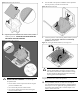
Figure 1 Front panel components of the z6000 chassis with 2
SL160z servers
Item Description
1a Tray Handle
1b Tray Latch
2 Serial Port
3 Video Port
4 Top: USB 2.0 Port
Bottom: USB 2.0 Port
5 Top: NIC Connector
Bottom: NIC Connector
6 IPMI Port
Item Description
7 UID LED/SW
8 PCI Slot
9 Health LED
10 Power Button
Rear Panel Components
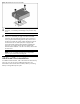
Figure 2 Rear panel components of the z6000 chassis with 2
SL160z servers
Item Description
1 RJ 45 Port
2 Power Supply 2
3 Power Supply 1
4 UID LED
Server Configuration Resources
In addition to this Installation Sheet, other resources are available for
more information regarding the configuration and maintenance of
your server:
1. For safety information and detailed procedures relating to
installation of options, refer to any installation instructions that
came with the option, as well as the HP ProLiant SL160z G6
series Server Maintenance and Service Guide.
2. For safety information and detailed procedures related to the
rest of the steps listed in the “Configuring the Server”section,
refer to relevant chapter of the HP ProLiant SL160z G6 Series
Server User Guide.
3. For information relating to system BIOS configuration and
operating system installation, refer to relevant section of the HP
ProLiant SL160z G6 Server Software Configuration Guide.
4. Refer to the HP ProLiant SL160z G6 Server Easy Set-up CD for
additional information and updates not provided in this
installation sheet. You can also access additional information
and documentation from the HP website at
http://www.hp.com/
, either by connecting directly or through
the Easy Set-up CD.
Server Configuration Overview
The steps listed below give an overview of the necessary setup
procedures for preparing the HP ProLiant SL160z G6 Generation 6
Server for operation:
1. Connect the AC power cord and peripheral devices.
2. Power up the server.
3. Press “F10” to enter BIOS setup.
4. Note the server BIOS version.