
ProLiant ML530 Generation 2 Server Setup and Installation Guide


Server Configuration and Utilities
8-10 HP ProLiant ML530 Generation 2 Server Setup and Installation Guide
HP CONFIDENTIAL
Writer: Richard O. Heath File Name: i-ch8 Server Configuration and Utilities.doc
Codename: Seattle Slew Part Number: 225579-002 Last Saved On: 1/8/03 3:19 PM
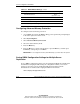
Table 8-1: RBSU Default Settings continued
Menu/Option Default Setting
Set CPU Corrected
None
(choose 1 or 2)
Wake On LAN
Disabled
NMI Debug Button
Enabled
Custom POST Message
None
Processor Hyper-Threading
Enabled
Configuring Advanced Memory Protection
To configure advanced memory protection:
1. Access RBSU by pressing the F9 key during power up when the prompt displays
in the lower right corner of the screen.
2. Select System Options.
3. Select Advanced Memory Protection.
4. Select the desired memory mode.
5. Press the Enter key.
6. Press the Esc key to exit the current menu, or press the Esc key, and then press
the F10 key at the prompt to exit RBSU.
IMPORTANT: To reconfigure the memory after initial setup, you must reboot the system.
Saving RBSU Configuration Settings for Multiple Server
Replication
To save RBSU configuration settings, use the Configuration Replication Utility from
the SmartStart Scripting Toolkit. Saving the configuration enables you to restore
settings at a later date. Use the Configuration Replication Utility from the
SmartStart CD or download the Scripting Toolkit from the website:
www.compaq.com/support/files/server