
Microsoft BackOffice Small Business Server 4.5 Installation Instructions for Compaq Prosignia and ProLiant Servers

Microsoft BackOffice Small Business Server 4.5 Installation Instructions for Compaq Prosignia and ProLiant Servers 7
13J6-1000A-WWEN
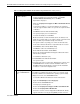
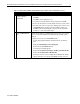
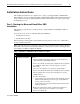
Table 5. Creating SSD for Windows NT 4.0 diskettes using SmartStart 4.23 or later (continued)
√
√√
√
Procedures Steps
!
Creating support
software diskettes
1. From the Diskette Builder window, click Create Support Software.
2. From the Integration Server Selection window, select Create
software diskettes from CD only. Then, click Next.
3. Expand the Compaq tree.
4. Make sure Compaq Server Support for Microsoft Windows NT 4.0
is selected.
Look under Description to see how many diskettes are required to
create the support software. Make sure you have the required number
of diskettes.
5. Click Next to launch the Diskette Builder Utility.
The system prompts you to insert diskette #1.
6. Insert the first diskette, then click Next.
Note: If the diskette contains information (that is, the diskette is not
blank), the system prompts you to verify the deletion of this data. Click
Yes to overwrite any information already on the diskette.
The system continues to prompt you to remove the diskette and to
insert another diskette until all of the required diskettes are created.
7. Click Finish to exit the Diskette Builder Utility.
8. Click Next to continue the SmartStart process.
9. On the Manual Path window, click Continue.
10. Remove the Compaq SmartStart and Support Software CD and the
diskette when prompted.
11. Insert SBS boot diskette #1 (of 3).
12. Click Continue on the Manual Path window.
The system restarts
13. Follow the steps in the next procedure “Displaying the contents of the
NTREADME.HLP file” and then start the Installation of Microsoft
BackOffice SBS 4.5 by following the steps listed in the “Installation
Instructions” section of this Integration Note.
!
Displaying the contents
of the NTREADME.HLP
file
You will need to know the location of certain files on the SSD for Windows
NT. In addition, you must perform this procedure on a separate system
(one that has a Windows 95 or Windows NT operating system installed).
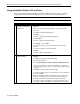
To display the contents of the NTREADME.HLP file:
1. Insert SSD for Windows NT diskette #1 into the diskette drive.
2. Right-click Start →
→→
→ Explore →
→→
→ 3 ½ Floppy (A:).
3. Double-click the NTREADME.HLP file.
The Help Topics window appears.
4. Double-click Compaq Server Support for Microsoft Windows NT.
5. Double-click Compaq SSD for Windows NT.
A list of the contents of each Compaq SSD for Windows NT diskette
appears. Print this screen (by pressing Ctrl+P) for future reference.