
Microsoft BackOffice Small Business Server 4.5 Installation Instructions for Compaq Prosignia and ProLiant Servers

Microsoft BackOffice Small Business Server 4.5 Installation Instructions for Compaq Prosignia and ProLiant Servers 6
13J6-1000A-WWEN
Creating Compaq Server Support for
Microsoft Windows NT 4.0 Diskettes
Compaq Server Support for Microsoft Windows NT 4.0, also referred to as the Compaq SSD for
Windows NT, is required for the Microsoft BackOffice SBS 4.5 software installation. This
section provides two sets of instructions. Identify the Compaq SmartStart and Support Software
CD release you are using, then follow the instructions in the appropriate section.
These instructions assume you are performing the installation for the first time.
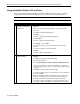
Using SmartStart Release 4.23 or Later
If you use Compaq SmartStart and Support Software CD Release 4.23 or later to create the
Compaq SSD for Windows NT 4.0 diskettes, refer to the procedures included in Table 5.
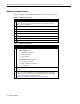
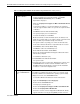
Table 5. Creating SSD for Windows NT 4.0 diskettes using SmartStart 4.23 or later
√
√√
√
Procedures Steps
!
Booting the Compaq
SmartStart and Support
Software CD
1. Insert the Compaq SmartStart and Support Software CD into the CD-
ROM drive.
2. When the first interactive window appears, select your language
preference.
The Regional Settings window appears.
3. Click Next.
The System Settings Summary window appears.
4. Click Continue.
The License Agreement window appears.
5. Click I Agree. Then, click OK.
6. Under Installation Path, select Manual Configuration. Then, click
Begin.
7. Expand the Microsoft tree on the Operating System Selection page.
8. Highlight Microsoft BackOffice Small Business Server 4.5. Then,
click Next.
9. When the Operating System Selection Summary window appears,
click Continue.
The system restarts. After the system restarts, the System Partition
Installation Utility automatically runs. The system then displays:
Formatting Temporary Swap Partition
After this process completes, the SmartStart and Support Software
CD restarts at the Diskette Builder window.
continued