
Microsoft BackOffice Small Business Server 4.5 Installation Instructions for Compaq Prosignia and ProLiant Servers

Microsoft BackOffice Small Business Server 4.5 Installation Instructions for Compaq Prosignia and ProLiant Servers 20
13J6-1000A-WWEN
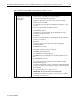
Table 8. Final Microsoft BackOffice SBS installation procedures (continued)
√
√√
√
Procedures Steps
!
Task 7:
Completing the Microsoft
BackOffice SBS
software installation
(continued)
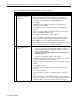
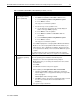
13. Remove CD #2 and insert Microsoft BackOffice SBS 4.5 operating
system CD #3, when prompted.
The system continues to install the components.
14. The system prompts you to insert one of the following after the
components from CD #3 have been loaded:
• Microsoft Outlook 2000 version CD (1 of 1)
• Microsoft Office 2000 Professional version CD (1 of 2)
With the Office 2000 Professional version, the system prompts you
to remove CD #1 and insert Office 2000 CD #2.
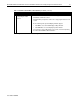
After the files have been copied from the last CD, the Completing the
Microsoft BackOffice Small Business Server 4.5 Setup Wizard window
appears.
15. Click Finish.
16. Remove the CD from the CD-ROM drive.
17. Click Yes to restart the server at the Small Business Server 4.5 dialog
box.
The system restarts and the installation is complete.
Proceed to Task 8 to update the system drivers.
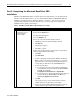
!
Task 8:
Updating the system
drivers
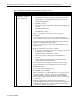
The To Do List window appears if the installation process has been
successfully completed.
Note: The Invalid Display Settings window and the Display Properties
window may initially precede the To Do List window.
1. Insert Compaq SSD for Windows NT diskette #1.
2. Right-click Start →
→→
→ Explore →
→→
→ 3 ½ Floppy (A:).
3. Double-click Setup (on Compaq SSD for Windows NT diskette #1).
The Compaq Server Support Setup for Microsoft Windows NT 4.0
main window appears.
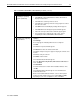
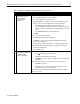
4. Click Express to begin the component update process.
5. Click Update on the next screen.
6. Insert the requested media when prompted.
7. Click Retry if prompted for additional source media.
8. Click Exit after the update process has completed.
9. Remove the diskette.
10. Click Reboot to restart the system if prompted. (This may take several
minutes. Please wait.)
The system drivers are now updated.
Proceed to Task 9 to configure the graphics driver.
continued