
Microsoft BackOffice Small Business Server 4.5 Installation Instructions for Compaq Prosignia and ProLiant Servers

Microsoft BackOffice Small Business Server 4.5 Installation Instructions for Compaq Prosignia and ProLiant Servers 19
13J6-1000A-WWEN
Table 8. Final Microsoft BackOffice SBS installation procedures (continued)
√
√√
√
Procedures Steps
!
Task 7:
Completing the Microsoft
BackOffice SBS
software installation
(continued)
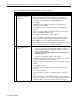
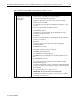
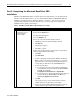
1. Click Next to continue.
A message may appear indicating the video card should display at
least 16 colors.
2. Click OK to continue.
A message appears indicating that Windows NT Service Pack 4 is
about to be installed. The server automatically restarts after the
installation is complete.
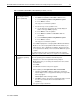
Note: Do the following when the specified Display windows appear:
• Click OK to close the Invalid Display Settings window.
• Click Cancel to close the Display Properties window.
The Small Business Server 4.5 Setup Window Will Now Continue
window appears. (Windows NT 4.0 Service Pack 4 has been
successfully installed.)
3. Click Next to continue.
The Company Information window appears.
4. Type the appropriate company information. Then, click Next to
continue.
5. Do not enter a password when prompted for an Administrator
password. Simply, press the Enter key.
6. Type the 25-character CD key. Then, click Next.
7. Select Complete Installation. Then, click Next.
8. Enter the Business fax number, when prompted, if you have installed
a modem. Then, click Next. Otherwise, proceed to Step 9.
9. Click Next when the SQL Database Configuration appears.
Your Small Business Server Installation window appears.
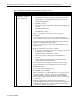
10. Accept the default values or make other selections. Then, click Next.
11. When the Folders for Small Business Server Data window appears,
click Next.
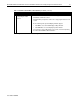
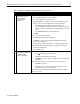
The Small Business Component Installation window appears while the
system installs the components.
Note: The installation may take some time to complete, but it will
ensure that all of the necessary components are installed.
After the first phase of the component installation, the system
automatically restarts and continues with the tasks shown in the
Windows Update window. At this point, the system prompts you to
insert the Microsoft BackOffice SBS 4.5 operating system CD #2.
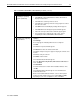
12. Insert the Microsoft BackOffice SBS 4.5 operating system CD #2,
then click OK.
The installation process continues to copy files from the CD to the
hard drive.
continued