
Microsoft BackOffice Small Business Server 4.5 Installation Instructions for Compaq Prosignia and ProLiant Servers

Microsoft BackOffice Small Business Server 4.5 Installation Instructions for Compaq Prosignia and ProLiant Servers 18
13J6-1000A-WWEN
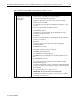
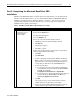
Table 8. Final Microsoft BackOffice SBS installation procedures (continued)
√
√√
√
Procedures Steps
!
Task 6:
Selecting the correct
network interface
controller (NIC)
(continued)
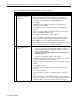
6. Select the Bindings tab to update the system settings.
7. Select the Protocol tab to set the IP address.
The system displays the network protocol.
8. Click Properties (once or twice). If there is no information in the IP
Address field or the Subnet Mask field, enter this information:
• Type 10.0.0.2 in the IP Address field. (This address, the
recommended Microsoft default, should be used unless there are
network conflicts. Contact Microsoft Technical Support if conflicts
occur.)
• Type 255.255.255.0 in the Subnet Mask field.
9. Click OK.
10. Close the Control Panel window.
11. Click Close to exit the Network dialog box.
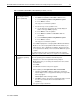
Click OK if a setup message appears indicating that the Remote
Access is not configured.
You must now restart the system for the new settings to take effect.
12. Click Yes to shut down and restart your computer at the Network
Settings Change window.
The system restarts
.
!
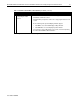
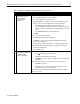
Task 7:
Completing the Microsoft
BackOffice SBS
software installation
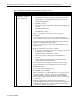
After the system restarts, the Installed Modems window may display.
• If the
symbol appears, this indicates:
Setup was unable to verify your modem
• Click Next to continue. (This issue will be resolved later during the
installation.)
If there was no modem in the server at the time of the installation:
• Click Next to continue.
• Click Yes to proceed if a message indicating that there is no
modem installed on this server appears.
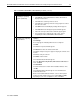
Then, the Hardware Confirmation window appears listing the hardware
found on the system.
continued