
Microsoft BackOffice Small Business Server 4.5 Installation Instructions for Compaq Prosignia and ProLiant Servers

Microsoft BackOffice Small Business Server 4.5 Installation Instructions for Compaq Prosignia and ProLiant Servers 15
13J6-1000A-WWEN
Table 7. Initial Microsoft BackOffice SBS installation procedures (continued)
√
√√
√
Procedures Steps
!
Task 4:
Installing and configuring
modem drivers
(continued)
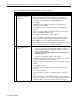
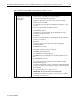
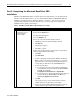
11. Click OK when the Modem Setup window appears indicating the
system must be restarted before using the modem.
The Location Information window appears.
12. Supply the appropriate information in the Location Information
window. Then, press Next.
A confirmation message appears indicating the modem was set up
correctly.
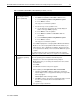
13. Remove the modem driver installation diskette.
14. Click Finish to continue.
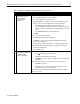
The Modems Properties window appears displaying the correct
information about your modem.
15. Click Close.
A Modem Setup window appears indicating that dial-up networking
needs to be configured.
16. Click Yes.
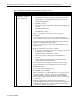
The Remote Access Setup window may appear displaying:
Undetected Modem
17. Click Remove to continue.
18. Click Yes to confirm the removal of the port.
19. Click Add to add a RAS device.
The Add RAS Device window appears.
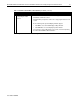
20. Click OK when your modem appears in the RAS Capable Devices
box.
21. Click Continue to proceed.
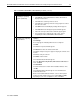
The system makes internal updates, then the Network Settings
Change window appears.
The background window continues to display an Undetected Modem
message. This will be resolved after the system restarts later during
the installation.
The system prompts you to restart the server.
IMPORTANT: Do not restart the server at this time!
22. Click No when prompted to restart the server. Then, go to “Task 5:
Completing the initial process.”
continued