
Microsoft BackOffice Small Business Server 4.5 Installation Instructions for Compaq Prosignia and ProLiant Servers

Microsoft BackOffice Small Business Server 4.5 Installation Instructions for Compaq Prosignia and ProLiant Servers 14
13J6-1000A-WWEN
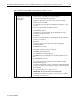
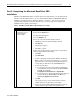
Table 7. Initial Microsoft BackOffice SBS installation procedures (continued)
√
√√
√
Procedures Steps
!
Task 3:
Installing the operating
system (continued)
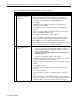
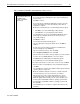
10. If no modem is installed:
• Click Cancel on the Installed Modems window, which will not
display a modem name.
• Click Yes when asked if you want to cancel.
• Click Yes when asked if you want the setup program to continue
after the next restart.
• Click OK when the Invalid Display Settings window appears.
• Click Cancel when the Display Properties window appears.
• Follow the same procedure if these windows appear again.
• Proceed to the steps outlined in the next section, ”Part 2:
Completing the Microsoft BackOffice SBS Installation.”
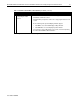
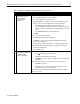
!
Task 4:
Installing and configuring
modem drivers
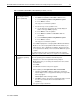
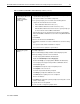
1. Highlight Undetected Modem. (You may need to click twice to
highlight.)
2. Click Change.
A message appears indicating RAS must be reconfigured.
3. Click OK.
The Modems Properties window appears.
4. Click Remove to delete the undetected modem.
The Modem Setup message box appears verifying the removal of the
modem.
5. Click Yes to verify the removal.
6. Click Add to add a modem.
The Install New Modem window appears.
7. Select the Don’t detect my modem; I will select it from a list box.
Then, click Next.
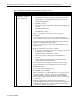
8. Click Have Disk.
9. Insert the manufacturer’s modem driver installation diskette. Then,
click OK.
The Install New Modem window appears. It should indicate the
modem that was found.
10. On the next Install New Modem window, select on which port the
modem should be installed. (The port is usually COM2 or COM3,
depending on your server configuration.) Then, click Next.
continued