
Microsoft BackOffice Small Business Server 4.5 Installation Instructions for Compaq Prosignia and ProLiant Servers

Microsoft BackOffice Small Business Server 4.5 Installation Instructions for Compaq Prosignia and ProLiant Servers 11
13J6-1000A-WWEN
Table 7. Initial Microsoft BackOffice SBS installation procedures (continued)
√
√√
√
Procedures Steps
!
Task 1:
Starting the installation
(continued)
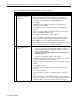
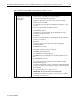
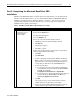
7. Insert the appropriate Compaq SSD for Windows NT diskette.
Note: To help you determine which diskette to use, locate the
appropriate SCSI driver on the Compaq SSD for Windows NT list of
contents that you obtained from the NTREADME.HLP file.
8. Press Enter.
9. Highlight the SCSI or Array Controller that is your primary boot
controller, then press Enter.
10. Press Enter to continue. (It is not necessary to install additional
devices.)
11. Remove the Compaq SSD for Windows NT diskette, then insert the
Microsoft BackOffice SBS diskette #3.
12. Press Enter to load the Microsoft device drivers.
13. Remove the Microsoft BackOffice SBS diskette #3, then insert the
Microsoft BackOffice SBS operating system CD when prompted.
14. Press Enter to continue loading the Microsoft device drivers.
15. Press Enter to accept the default hardware and software components
when the Windows NT Server Setup window appears.
!
Task 2:
Choosing disk carving
options
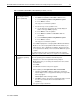
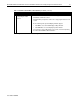
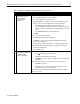
IMPORTANT:
• If there is a Compaq system partition (EISA Utilities), remove it
before installing the Microsoft BackOffice SBS 4.5 software. (See
Steps 1 through 3 below.)
Failure to delete this partition will result in the failure of the
installation process.
• If there is no EISA Utilities partition, skip to Step 4.
1. Highlight the EISA Utilities partition when the partition screen appears.
Then, press the D key to delete the partition.
A dialog box appears indicating that you are about to delete a system
partition.
2. Press Enter to continue.
A dialog box appears indicating the EISA partition is about to be
deleted.
3. Press the L key to delete.
At this point, there should be one unpartitioned space on the hard
drive.
Note: If this space is over 8000 MB, the hard drive can be divided into
two (or more) partitions. It is recommended that a partition be at least
3000 MB (3 GB). You can specify a larger partition if you desire.
continued