
Microsoft BackOffice Small Business Server 4.5 Installation Instructions for Compaq Prosignia and ProLiant Servers

Microsoft BackOffice Small Business Server 4.5 Installation Instructions for Compaq Prosignia and ProLiant Servers 10
13J6-1000A-WWEN
Installation Instructions
The installation instructions are comprised of two parts: (1) starting the Microsoft BackOffice
SBS installation, and (2) completing the Microsoft BackOffice SBS installation. Each part divides
the procedures into tasks, providing detailed information and check boxes to guide you through
the installation process.
Part 1: Starting the Microsoft BackOffice SBS
Installation
This section provides the steps you must perform to begin the Microsoft BackOffice SBS 4.5
installation.
You can follow one of two modem paths during the installation:
• Install with a modem or
• Install without a modem
The following procedures guide you through the necessary steps if you choose to install with a
modem or without a modem.
Note: The following steps assume that you have already created the Compaq SSD for Windows
NT diskettes. If you have not created these diskettes, see the previous section, “Creating Compaq
Server Support for Microsoft Windows NT 4.0.”
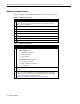
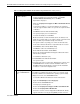
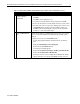
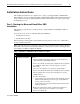
Table 7. Initial Microsoft BackOffice SBS installation procedures
√
√√
√
Procedures Steps
!
Task 1:
Starting the installation
At the Compaq server on which you want to install Microsoft BackOffice
SBS 4.5:
1. Start the installation by booting to diskette #1 (of 3 boot diskettes)
supplied with Microsoft BackOffice SBS 4.5.
2. Remove boot diskette #1 and insert boot diskette #2, when prompted.
3. Press Enter to continue at the end of the copy process (of boot
diskette #2).
This causes the setup process to detect the system hardware.
4. Remove boot diskette #2 and insert boot diskette #3, when prompted.
After boot diskette #3 is read, the system prompts you to specify
additional devices.
5. Do one of the following:
• For Prosignia Server 720,ProLiant 400, ProLiant ML330, ProLiant
ML350, ProLiant ML370, press the S key (to specify additional
devices). Then, go to Step 6.
• For Prosignia Server 740, ProLiant 800, ProLiant 1600, ProLiant
1850R, go to Step 14.
Note: If a Compaq Array Controller is added as the primary boot
controller on any of the servers listed above, go to Step 6.
6. Remove boot diskette #3.
continued