
Compaq ProLiant ML350 Server General Troubleshooting Guide

2-22 Compaq Servers Troubleshooting Guide
Compaq Confidential – Need to Know Required
Writer: Susana Weinstein Salazar Project: Compaq Servers Troubleshooting Guide Comments:
Part Number: 161434-001 File Name: c-ch2 Hardware Problems.doc Last Saved On: 8/28/99 1:29 PM
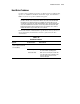
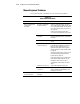
Mouse/Keyboard Problems
Use the following table to troubleshoot mouse and keyboard problems.
Table 2-12
Mouse/Keyboard Problems
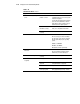
Problem Possible Cause Possible Solution
Mouse or keyboard does
not respond to
movement.
The mouse or keyboard is
not firmly connected.
If this is a rack-mounted server, check the
cables to the switch box. Make sure the cables
are securely attached. Make sure the switch is
set for the server in question. Check for bent
connector pins.
If this is a tower model, check the cable
connection from the input device to the server.
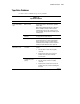
Correct server node not
connected.
Check the integrated two-port switch box to
make sure that both servers are connected to
the switch.
The driver is not correct. Obtain the current driver for your operating
system.
System may be hung and
needs to be rebooted.
If the device or port is bad, there should be a
Power-On Self-Test (POST) error. If there is a
POST error, swap another PS/2 mouse or
keyboard. If the problem follows the device,
then the input device is defective and needs to
be replaced.
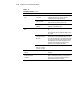
If the device works, then the connector port on
the system I/O board is defective and the
board needs to be replaced.
If there was no POST error, check if the input
device functions properly after the reboot.
If it still does not work, there may be a
corrupted device driver. Replace the device
driver.
Switch box cable too long. Replace with supported Compaq cable.
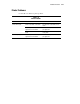
Keyboard not connected to
correct port.
Determine whether the keyboard lights flash at
POST or the NumLock LED illuminates. If not,
change port connections.
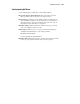
Keyboard does not work
or some keys stick.
Look for signs of spilled
beverages.
Keyboard requires cleaning or replacement.